0:00
Welcome and follow me as a Lenovo tab extreme and today I will show you how we can go to the setup process of your brand new device
0:11
So to get started see if this actually works I'm gonna try to connect my pen first
0:19
Just lock it in here Might not work that it's actually set up which would be unfortunate
0:31
So, let's see It doesn't seem to work. Okay, so I'm not using pen anyway, so we're gonna start off by selecting our desired language from the list
0:39
right here I'm gonna be sticking with English We can select next or start in this case and we'll be presented with the terms of use
0:49
Which you can top either on the user agreement and also privacy policy to read exactly what you're agreeing to
0:55
But if you're like basically everyone else, you're just gonna check the box and select next
1:00
Next we have the Wi-Fi connection page. So here you can connect to your network
1:05
I'm gonna be setting it up offline if it actually allows me and it does
1:09
and Because I have no network connection it won't set date and time automatically and also I won't be seeing
1:17
Google a login page throughout the setup process now if you chosen to connect to your network, you won't see this page
1:24
And you will see the Google login page unlike me Now next we have Google services now
1:32
We have three different ones like the location scanning and sending user and diagnostic data
1:35
If you don't want them you can turn them all off and from there We can go to the next page, which is some kind of privacy and the basic settings
1:44
It's kind of Funny that it's a toggle for privacy Usually expected to be you know
1:51
Automatic but whatever so during the user experience programs Check that if you want to check it on
1:58
auto-update if you don't want your device to be automatically updated I can turn that off and
2:04
We start an upgrade overnight again It kind of goes in the hand with the auto-update which you don't want it. You can turn that off all off
2:12
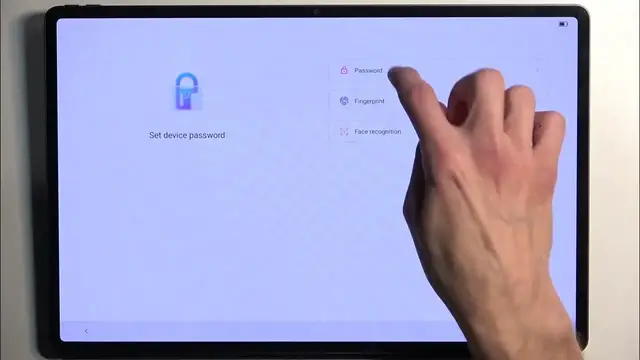
Next we have protection settings so we can set a screen lock either password fingerprint or Facebook ignition now password
2:21
Has three different options, which has pin pattern or password So if you want one of those you can set it up now with that being said if you want to use a fingerprint
2:29
print or face recognition you will always be required to also select a
2:34
Pin pattern or password and the reason for that is if something would happen to your face or your finger
2:39
You would lose access to your device hence that would leave the last option being pin pattern or password
2:45
which would not change based on if your Biometrics aren't being read correctly
2:52
I'm gonna be skipping this anyway And the next we have system navigation, so we have two different ones now
2:58
we have the gesture navigation, which is the one that I will prefer and which is enabled by default and you also have the
3:04
Virtual navigation, so it adds these buttons on the side so they would appear somewhere here a three button navigation
3:10
So you can choose whichever one you want. I will be like I said sticking with gestures And this looks to be basically completing the setup. There we go
3:18
So that's about it now if you found this video helpful, don't forget to hit like subscribe and thanks for watching