0:00
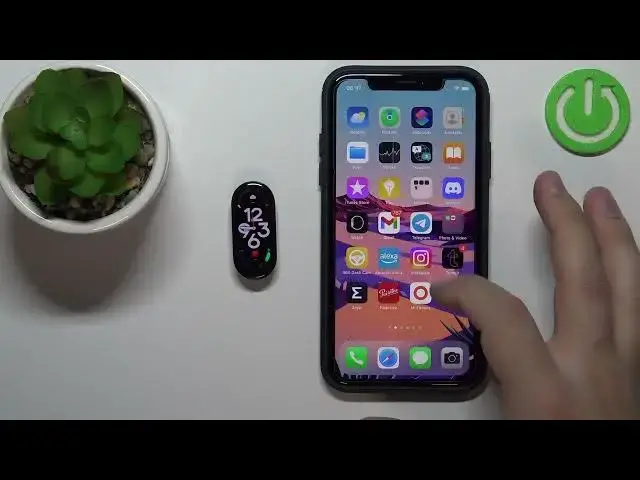
Welcome in front of me I have
0:02
Xiaomi Mi Band 7 and I'm going to show you how to pair this smart band with the iPhone
0:12
First thing you will need to do is to turn on your smart band and you can do it by plugging it into a charger
0:18
Once you plug it into a charger it's going to turn on automatically
0:22
After the smart band turns on you may see the QR code on the screen
0:26
This means we need to download and install the me fitness application on our iPhone
0:33
So to do it, let's open the App Store on our iPhone. Also make sure that you have internet connection
0:40
because you needed to download and install the applications. Once you open the App Store
0:45
tap on search, then tap on search bar and type in Me Fitness
0:54
And tap search. You should see this application on the list Me Fitness
1:02
known as Xiaomi wear light tap on it to select it then tap on the get button to download
1:09
and install it after the application is done downloading you can tap on the open button to open it now we can tap on start Here we need to check the first box The second one is not mandatory
1:24
but if you want to enroll into user experience program, you can also check it
1:28
And then tap on Agree. Now we need to select the region
1:34
So tap on here. And scroll through the list. Find the region you want to select
1:39
And tap on it to select it, for example, United States. Then tap next
1:44
And now you should see the health page of the app. Now tap on the device icon
1:50
Tap on a device. Tap on OK. And here we need to log in into me account
1:56
You can also create a new account if you need to by tapping on create account button right here
2:01
I already have an account. So I'm going to tap right here. Enter email and password
2:05
And once you enter the email and password, check the bugs right here
2:09
Oh, my bad. I tapped on it. let's go back to the app
2:14
check the bugs and then tap on sign in to login and after you log in
2:21
you might get a couple of pop-ups about the permissions here let's tap on okay because the Bluetooth
2:27
permission is mandatory next we have the workout and fitness data it asking us to sync the workout and fitness data on all our devices you can tap okay if you want to do it You can also tap on cancel to cancel it I just going to tap on OK
2:52
Let's tap on search again. And now, as you can see, the app detected are bent
2:58
So let's tap on it to select it. tap on the checkmark to confirm the pairing
3:14
And then tap on the done button. For some reason the app froze, I don't know why, but we can try to reopen it, so let's close the app
3:24
I'll open it. Now we have pop-ups about more permissions, for example the notification permission, and
3:33
And location permission. Location permission is useful when you try to track your
3:37
routes when you're running, cycling and stuff like that. So if you want to use this feature, allow it
3:44
If you don't, you can deny it. Next, we have notification permission
3:49
This is the permission that is required to send the notifications from your iPhone to your smartband So if you want to receive these notifications on your smart band you need to allow this permission If you don care you can tap on deny
4:04
And as you can see, another pop-up came out about the pairing
4:08
This, we need to tap on the pair to pair it. This we can deny it or allow
4:17
And once we're done, we can tap on device. And we should see our show
4:22
smart band right here on the list of devices and it should be connected as you can see
4:31
And we can also use our smart band at this point. Normally the app doesn't hang up like it did in our case right here
4:39
So those permissions will pop up during the pairing process, not when you open the app
4:44
But if they pop up during the, when you open the app, allow the, remember to tap on pair to pair the devices together
4:51
and you can allow or deny rest of them. Okay, and that's how you pair this smartband with the iPhone
4:59
Thank you for watching. If you found this video helpful, please consider subscribing to our channel
5:04
and leaving the like on the video