0:00
Welcome! In front of me I have Skagen Falster Gen6 and I'm gonna show you how
0:05
to pair this watch with the Android phone. First thing we need to do is to turn on our watch and you can turn it on by
0:16
pressing and holding the middle button right here. Keep holding the button until
0:20
you see the Skagen logo on the screen. And once the watch turns on you should see tap to begin message. It means that
0:32
we need to tap on the screen to continue. It will open the list of languages and
0:36
here you can scroll through the list, find the language you would like to use on your watch and once you find it tap on it to select it. And after you select the
0:43
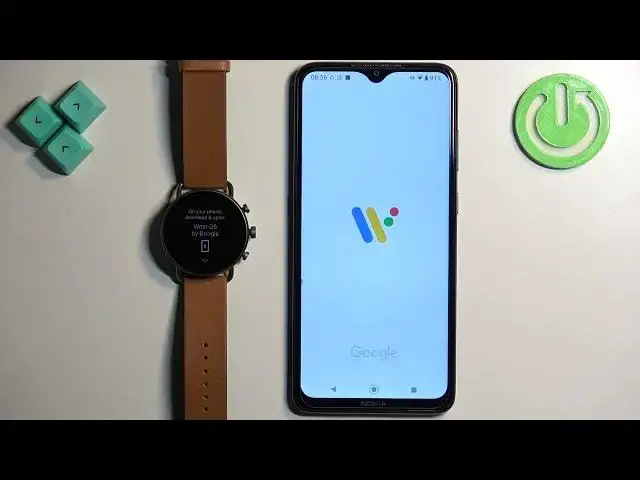
language tap on the checkmark and then you will see this message. Basically it
0:47
tells us to download and install the Wear OS application. So go to your phone
0:53
make sure you have the Internet and Bluetooth enabled, then open the Google
0:58
Play Store, tap on search and type in Wear OS and then tap on search. And you
1:07
should see this application Wear OS by Google. Tap on install. And once the application is done installing tap on open to open it. Once
1:27
the application opens you may see pop-up about this permission. We need to allow
1:31
it so let's tap on allow, then tap on more and agree and continue. The app will
1:37
start searching for the nearby devices and it should detect your foster gen 6
1:41
after a couple of seconds. Once it does tap on the watch or on the name of the
1:47
watch to select it, then tap on pair. And right here we can copy a Google account from our phone to our watch. This
2:07
is useful if you want to use Google services on your watch like Play Store
2:12
Gmail, messages and stuff like that. If you want to copy the Google account
2:17
basically as you can see we have the list right here. This is the list of
2:20
accounts added to my phone and you can basically enable or disable them. If you
2:25
enable one account and tap on next basically you will be able to copy it to
2:29
your watch and you will need to enter the password to confirm and once you
2:33
enter the password the account will be copied. I'm not gonna copy any account for now so I'm gonna tap on skip but you can do it if you want. Right here we
2:42
can connect our watch to Wi-Fi. Basically it will copy the Wi-Fi networks from
2:46
your phone and connect your watch to them. If you want to do it tap on connect
2:50
if you don't care you can tap on skip to skip it. Next we have basically
2:56
permissions for the calls, messages and stuff like that. If you want to for
3:01
example read and reply to messages on your watch and stuff like that you will
3:06
need to allow certain permissions. If you don't care you can tap on skip and skip this step or you can tap on next and keep allowing until you're done
3:16
Then we have the calendar permissions. This is basically if you want to see the
3:21
events from your calendar on the watch and manage them and stuff like that. If
3:25
you want to use this feature tap on next allow the permission, if you don't care you can tap on skip and keep it denied. And right here we have the
3:33
notifications. Basically if you want to receive the notifications from your phone on your watch you need to allow required permission. If you don't care
3:40
you can tap on skip and keep it disabled. I'm gonna tap on allow and then allow
3:48
Let's tap on allow again. Let's check if the Wear OS by Google is on the allowed
3:56
list and it is so we can go back to the app and it should move further. And here
4:03
we can tap next, done and at this point you should see your Foster Gen 6 on the
4:09
in the app basically. And the watch should basically work. You can use it
4:15
We have a tutorial but I'm gonna skip it and now we can use our watch. And that's
4:20
how you pair this watch with the Android phone. Thank you for watching. If you
4:25
found this video helpful please consider subscribing to our channel and leaving