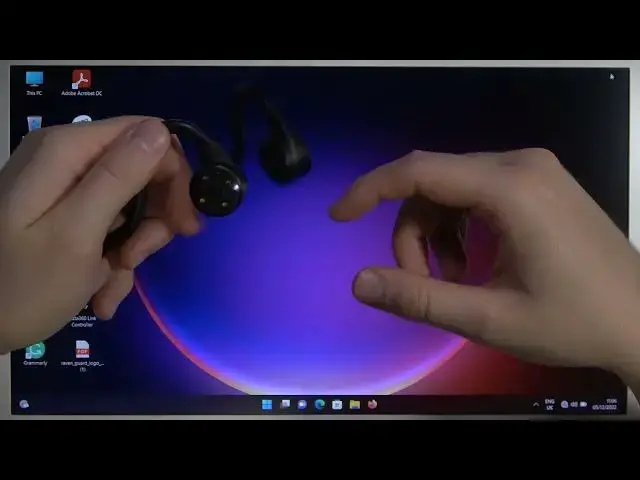

How to Pair Lenovo X5 Bone Conduction with Laptop?
Jul 24, 2024

To pair a Lenovo X5 Bone Conduction headset with a laptop, you will need to first turn on the headset and put it into pairing mode. To do this, press and hold the power button on the headset until the LED indicator light starts flashing. Once the headset is in pairing mode, you will need to turn on the Bluetooth feature on your laptop and put it into pairing mode as well. This can typically be done by going to the Bluetooth settings in the laptop's system preferences and selecting the "Add a Device" option. Once both the headset and the laptop are in pairing mode, they should be able to detect each other and complete the pairing process. After the headset and laptop are paired, you should be able to use the headset to listen to audio from your laptop.
Check out our website: https://www.hardreset.info
How to Connect Lenovo X5 Bone Conduction with Windows? How to Use Lenovo X5 Bone Conduction with PC? How to Sync Lenovo X5 Bone Conduction with Computer? How to Set Up Lenovo X5 Bone Conduction with Laptop?
#boneconduction #boneconductionheadphones #lenovo
You can also check our other YouTube channels:
https://www.youtube.com/c/HardresetInfo
Follow us on Instagram ► https://www.instagram.com/hardreset.info
Like us on Facebook ► https://www.facebook.com/hardresetinfo/
Tweet us on Twitter ► https://twitter.com/HardResetI
Support us on TikTok ► https://www.tiktok.com/@hardreset.info
Use Reset Guides for many popular Apps ► https://www.hardreset.info/apps/apps/
Show More Show Less