Up next in 10


Learn more info about GARMIN Venu Sq Music:
https://www.hardreset.info/devices/garmin/garmin-venu-sq-music/
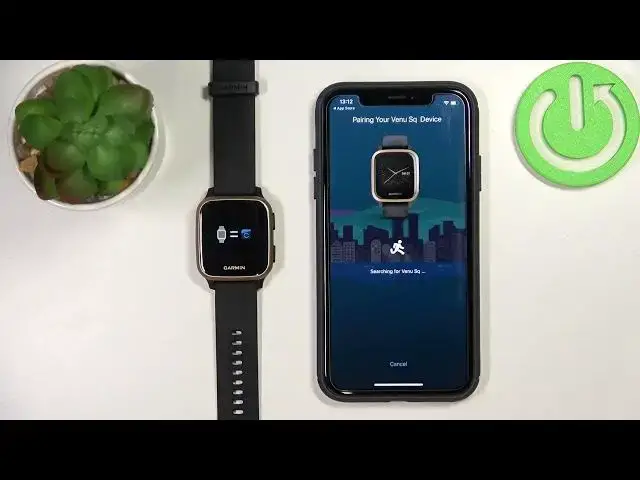
Would you like to pair your GARMIN Venu Sq Music with iPhone? In this tutorial we would like to show you how easily you can find proper options where you’ll be able to connect both devices. Thanks to the Bluetooth connection you’ll be able to pair GARMIN Venu Sq Music with iPhone and fully use potential of this device, so simply follow all shown steps to connect them.
How to pair GARMIN Venu Sq Music with iPhone? How to connect GARMIN Venu Sq Music with iPhone? How to add connection between GARMIN Venu Sq Music and iPhone? How to enable GARMIN Venu Sq Music connection with iPhone?
#Pair #Connect #GARMINVenuSqMusic
Follow us on Instagram ► https://www.instagram.com/hardreset.info
Like us on Facebook ► https://www.facebook.com/hardresetinfo/
Tweet us on Twitter ► https://twitter.com/HardResetI
Support us on TikTok ► https://www.tiktok.com/@hardreset.info
Use Reset Guides for many popular Apps ► https://www.hardreset.info/apps/apps/
Show More Show Less View Video Transcript
0:00
Welcome in front of me I have Garmin Venue SQ Music
0:10
and I'm going to show you how to pair this watch with an iPhone. You can pair this watch with an iPhone in two ways
0:16
The first method is to pair it during the setup process of the watch. So basically if your watch is brand new or it's been reset to the factory default settings
0:25
and the second option or other method is to pair it through settings
0:29
after the watch has been already set up. I'm going to show you the during setup method first
0:35
and then I'm going to show you how to do it through settings. Okay, so first thing you will need to do is to turn on your watch or wake up the screen on it
0:44
To turn on the watch, press and hold the upper button, and to wake up the screen on your watch, you can press any of the buttons
0:53
After you turn on your watch and it's brand new or it's been reset to the factory settings
0:58
you will see the hello screen. You can tap on the screen to continue, and now you will see the list of languages
1:04
You can scroll through this list by swiping up and down on the screen, find the language you like to use on your watch, and tap on it to select it
1:11
I'm going to select English. And as you can see, now we're being asked if you want to pair our watch with our phone
1:18
Tap on the checkmark to confirm. And now we need to download and install the Garmin Connect application on our iPhone
1:24
So let's open the App Store on our iPhone. In the App Store, let's tap on search, tap on the search bar, type in Garmin Connect
1:37
and then tap search. And you should see this app right here, Garmin Connect
1:47
You can tap on this icon to install the application. Wait until the app is done installing
1:58
Once the application is done installing, you can tap on open button to open it
2:06
Now let's make sure that the Bluetooth is enabled on our iPhone, so let's open the menu
2:12
First we need to tap on okay right here then open the menu and make sure that the Bluetooth is enabled If it not tap on the Bluetooth icon to enable it Okay And once the Bluetooth is enabled we need to login into Garmin account As you can see my iPhone remembers the account already
2:30
so I can just tap on Continue to log in, but if you're opening the app for the first time, you will see the screen
2:37
And here you can create a new account or login by tapping on sign in right here
2:42
I'm just going to tap on Continue to login into mine account, tap the check the boxes and then tap next
2:51
Now let's go to our watch and tap on the checkmark right here
2:57
And as you can see, the watch enter the pairing mode. You will see this animation on the screen
3:02
And right here we can allow some permissions for the application. So if you want to receive the notifications on your watch, you need to tap on allow
3:10
If you don't want to use this feature, tap on don't allow. And here we can allow the health features
3:15
like heart rate, resting heart rate, sleep and stuff like that. If you want to track it with your watch, we need to allow it right here
3:24
I'm just going to tap on turn on all and then tap on allow. You can customize it however you like it
3:29
And after that, the app should detect your watch automatically. As you can see, tap on connected
3:35
Now we need to enter the pin from our watch. So 46-6-1-3-4 and tap per
3:44
Oh, my stuff entered the code wrong, so let's try again. 7-2-8-3-30 and then tap there
3:57
Now let's stop on retry. Okay, this time it went through
4:11
A little bit wonky but as you can see it's one. it's working now
4:15
Now it's pairing the watch. Set up is complete. Now we can tap on next
4:21
Here we can set up a sleep time. Basically, when we go... Typically, we go to bed and when we wake up
4:27
This is useful if you want to use something like sleep tracking or sleep do not disturb mode, basically
4:34
So if you want to... For the do not disturb mode to turn on automatically
4:39
during your sleep time you can customize this at the time period to basically use it and to do it simply tap on the border or other the frame And you can adjust the time by swiping up and down on the screen
4:52
And once you're done, tap on next. Then tap yes or no, if you don't want to use do not the stair mode
5:00
But I'm going to tap on yes. Here we can select the preferred wrist, basically on which we prefer to wear the watch
5:06
then tap next. And now we can add to send the... recent training data to the device. I'm just going to tap on no but if you want to you can
5:14
tap on yes and tap next. Right here we can set up some goals basically something like
5:22
steps, amounts of liquid drink during the day and stuff like that. If you want to do it
5:27
tap on edit my goals and here we can customize it. We have auto or custom. You can tap on the
5:33
frame to customize it. Again for fluid is also auto or custom or you can
5:39
tap on the frame and below we have intensity per minutes basically this is intensity training
5:46
and you can set up the goal for your intensity training and once you're done tap on next here
5:52
we're being asked to allow the location permission if you want to track your routes like for
5:59
example you're running routes and stuff like that you need to allow it if you don't
6:03
tap on skip I'm just going to allow it and tap allow while using the app here we can allow the calendar
6:09
access so if you want to have the calendar access on your watch and see some appointments and
6:15
stuff like that you need to allow the permission if you don't want to use it you can tap on skip to
6:19
skip this i'm just going to allow it then tap on sync now then tap finish now let's tap on next
6:32
next this is basically a tutorial how to use the watch you can go through it by tapping on next
6:39
And once you're done, you can tap on finish. Here we can manage the data
6:44
Basically, you can select the place or location from which you want to get the weather data
6:50
I'm just going to tap on No Thanks. Then tap on Gadid. And if you see this icon right here at the top of our watch
6:57
that means that the watch is spared with our phone. You can also tap on more right here Scroll down tap on Garmin devices and you should see the Avenue SQ on the list of devices You can tap on it to open the device page for your watch
7:12
And as you can see, the watch is ready to use. And it's paired with our phone. Okay, so that's how you pair it during the setup process
7:19
Now I'm going to show you how to do it through settings. So I'm going to unpaer this watch from our phone
7:24
I'm going to remove it. Close the app. check the Bluetooth settings if the watch is still right there
7:39
As you can see, it says it's connected, so I'm just going to open the Bluetooth settings
7:43
tap on the info icon next to Venue, tap on forget device, forget device to remove it completely
7:50
Okay, so now let's say our watch is set up already, and I want to pair it with a phone
7:56
Of course, you will need to download and install the Garmin Connect IQ app, rather Garmin Connect app
8:01
on your iPhone once you install it you can go to your watch
8:07
present hold the lower button to open the menu, scroll down tap on the settings icon
8:13
scroll down, find the option called phone and tap on it here scroll down and tap
8:19
on per phone. This will open the pairing mode or other the watch
8:25
will enter the pairing mode. Now you can open the app and if it's
8:29
if you're opening for the first time you will go through the login screen and then the app should detect your watch automatically
8:35
If you already have an or other required logged in already in the app, you can tap on the plus button
8:40
and it's going to detect your watch. You can tap on connected
8:45
Enter the code. Tap pair and just go through the whole process as we did before when we were paring our watch
9:01
As you can see, our watch is paired with our phone now
9:05
Okay, and that's how you pair this watch with an iPhone. Thank you for watching
9:12
If you found this video helpful, please consider subscribing to our channel and leaving the
9:17
like on the video