0:29
And now we need to download and install the Zepp application on our iPhone
0:33
So let's open the App Store. In the App Store let's tap on Search
0:43
Type in Zepp. And then tap Search. And you should see this app right here
1:18
once the app is done downloading you can tap on KONIEC KONIEC KONIEC KONIEC KONIEC KONIEC KONIEC KONIEC KONIEC KONIEC KONIEC
1:39
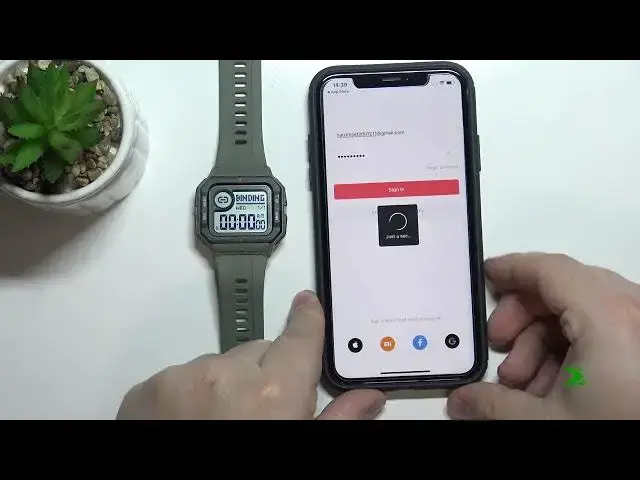
I'm just going to login into mine account. I'm going to tap right here, enter the email address
1:49
And then I'm going to tap on password and enter the password. So give me a couple of seconds
2:01
Once you're done, you can tap on sign in to login. after you log in you will get prompt
2:09
about allowing the permission for notifications and stuff like that if you want to receive
2:16
the notifications from your phone on your watch tap on allow to allow the notifications
2:21
then you will get the prompt about allowing the access to the fitness and activity and again if you want to use those features like heart rate measurements and stuff like that tap on OK If you don tap on don allow
2:40
then tap on OK. And here in health we can select which types of data we want to share with the watch or with the ZEP application
2:50
And we can, for example, enable heart rate, sleep, weight, steps and stuff like that
2:55
enable whatever you want by tapping on the switches and basically you have here
3:03
allow app to write and to read so you can enable read and write for sleep and steps
3:12
separately basically and once you're done tap on allow here i'm gonna tap on now
3:20
and once you're done allowing the permissions you should see the homepage of the ZEP app
3:26
Now tap on the profile icon. Here tap on Add Device. Tap on Watch
3:36
Tap on Agree. And we need to allow... Oh, never mind. I thought we will need to be..
3:45
It will ask us for the permission for location but apparently not So let tap on watch without QR code And it should appear on the list right here Amazfit Neo
3:54
Select it. Then press the select button to confirm
4:09
Now let's tap on pair. I again, it's asking us to display the iPhone notifications
4:18
If you want to allow it, allow it. If you don't, tap on don't allow. I'm going to tap on allow
4:23
And here we can restore the basically reminders. And we can tap on restore or don't restore
4:31
I'm going to tap on don't restore. And now we should see the Amazfit Neo device page
4:39
And as you can see, watch is ready to use