0:00
Welcome, my name is Xiaomi Redmi 8A and today I'll show you how to transfer files from your
0:12
phone to an SD card or vice versa. And to get started we want to open up the Amores code on this device
0:20
Let's find it. He files up. I assume. There we go, File Manager in this case
0:29
So File Manager, let's allow whatever it pops up with. Let's cancel this
0:38
And now you want to go to the folder icon right over here
0:42
And you should see, it looks like by default it goes to the internal storage, but you can
0:47
tap on the drop down and also go to the SD card. Now before we go anywhere, I'll give you a brief overview where you can find everything
0:55
So starting off, DCIM folder will contain photos and videos that you have captured with
1:00
the device as you can see right here. Then you have Downloads folder which will contain anything that you have downloaded
1:08
either through your web browser or emails. Anything downloaded will be in this folder
1:15
Then these folders are I believe created by apps, like Mi Video Global, probably the one
1:20
that Xiaomi includes. Then you have Movies, Music. Files usually are placed by the user so you most likely know that something is in there
1:32
And then you have Pictures which will contain screenshots, although in this case it's empty
1:38
And that's about it. Rest of the folders are just made by apps or if you place something in there, like I
1:47
said, you will most likely know that they're in there. And same file structure usually is located on the SD card
1:54
So as you can see, a little bit less folders but also you have the Android, you have the
1:58
DCIM folder and whatever other folders you need to create like screenshots or stuff like
2:05
that, it will just do the correct structure so you'd find it also in here
2:10
So from here, let's find the files that we want to transfer. Which for me, like I said, I'm going to use some photos
2:18
From here you want to just simply select them and you do it by tapping on that circle right here
2:23
So as you can see, that becomes selected. And you can either select all of them if you want to by tapping right here
2:29
As you can see now, all of them are selected. Or by simply just tapping on it, whichever ones you want
2:37
If you don't want all of them, you would probably want to select the specific ones that you
2:41
don't want. Also another way you can do it is just select the entire folder by holding it like so
2:49
And once you have selected whatever you want, which I'm going to go and just select a couple
2:55
of these. Once you select anything basically, it gives you these options on the bottom
3:01
So you have Move and when you tap on More, you should see Copy right here
3:08
So select whichever one you want, either Move or Copy. Move will completely remove the files from where they are right now and move them to
3:14
a new location, while Copy will duplicate them basically. So I'm going to go with Move
3:22
And once you tap on one of the options, it will bring up folders where you can move them
3:27
So right now we're on the internal storage, so I'm going to go to the SD card just to
3:31
keep it a little bit different. And from here you can drop it anywhere you like
3:35
So you can drop it right here, go to the DCIM if you want to
3:40
Or you can also create a new folder. I believe if you tap on More, Create Folder, so you could create a new folder and drop
3:47
it into that if you want to. I'm not going to really bother with that, I'm just going to paste it right here
3:57
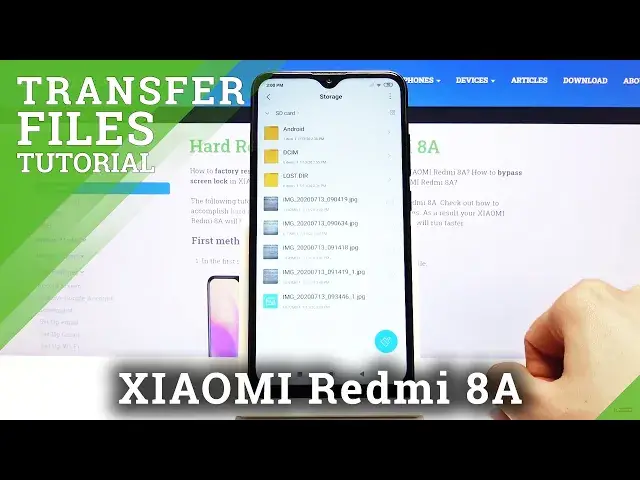
And there we go. As you can see, there are the five photos that I have selected
4:03
So, the same process will work for any kind of other file
4:07
And that is how you would copy them, or move. If you found this video helpful, don't forget to hit Like, Subscribe, and thanks for watching