0:00
Welcome, here I've got Oppo A54 5G and I'm gonna show you how to manage the camera watermarks
0:11
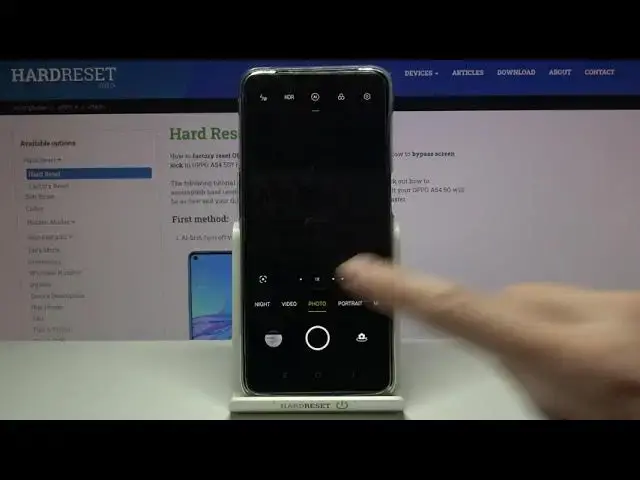
at this device. So at first we have to tap on a camera button to open it and for now we are in the standard
0:18
photo mode. From here let's go to the right corner. When we pick this button we can open the advanced camera settings
0:25
At the first place we have watermarks now, so let's tap here
0:29
And as you can see we have three watermarks we can add by using the buttons from the right
0:34
We can turn them on and off. We have phone model, date and time and the location
0:40
We can adjust one of these two or three at the same time as you can see
0:45
And when we tap for example to the phone model we get access to more settings about it
0:51
Here we can add also the custom watermark. So our own for example, let me write here hard reset
1:03
And save. Here we can also decide to add this only to photos or only to videos, so by using these
1:11
buttons from the right we can turn this on and off as we need
1:16
Now let me keep this like that, let's move back to this view. When we pick date and time we can decide also to add this only to photos or only to
1:26
videos by using these buttons from the right. And also the same thing happens with the location
1:32
Here we have the same parameters, so this is how to manage this. Now let me keep all of this turned on, let's move back to the camera to take the picture
1:41
to see these watermarks at the real one. Let's move now to the left to the button that follows us straight to the gallery
1:48
And this is our picture with watermarks in the left corner at the bottom
1:53
Let's get closer to them. And in the first line we have Oppo A54 5G watermark device one with hard reset the custom one
2:03
In the second line we have the date and time and the location
2:07
And of course when we don't need this or need another composition of the watermarks we have
2:12
to go back to the camera to the right corner then to the watermarks and pick here whatever
2:18
we need or just turn them off by using these buttons from the right
2:23
And that's all. Thanks for watching, subscribe our channel and leave the thumbs up