0:00
Hi guys! This is a new video about TikTok app
0:03
So today we will show you how to make collections on TikTok. Let's go to this application and one minute please about this collection
0:15
option. So this feature can help you to navigate between your saved TikToks. So if you want to
0:21
create some folders with your saved TikToks and you want to create this collection option
0:27
let's choose some TikTok as an example. So I will go to our official account hardrisset.info
0:37
to choose one of this TikTok as an example. Maybe it will be this one. So to save this TikTok and
0:46
to add this TikTok to some, for example, new or old collection, let's tap on the save button
0:53
As you can see, this button is located on the right side of the screen, so I need to tap on
0:58
it one time and choose the manage option which will appear on the notification. So let's click
1:04
on it one time and as you can see here we have three different collections, but we will create
1:13
a new one after tapping on the first option on the list. So let's click on it and here on the
1:20
bar we can set a name and title of our new collection. So as an example, it will be hardrisset
1:29
Okay, so to save this collection, let's tap on the save key here. Wait a minute and as you can
1:35
see here we have the alert that this TikTok was smoothly and successfully added to the collection
1:42
So let's check it. We need to tap on the arrow at the top of the screen to go to our profile page
1:50
And to check our saved TikTok, our saved collection. So how to do this? First of all
1:59
we need to go to the whole saved TikToks list. Let's tap on the third icon we can find on the top
2:06
bar of the profile page and right now we will be at the first step, we will be on the videos
2:14
section here to check all of the saved TikToks, but we need to tap on the collections one here
2:21
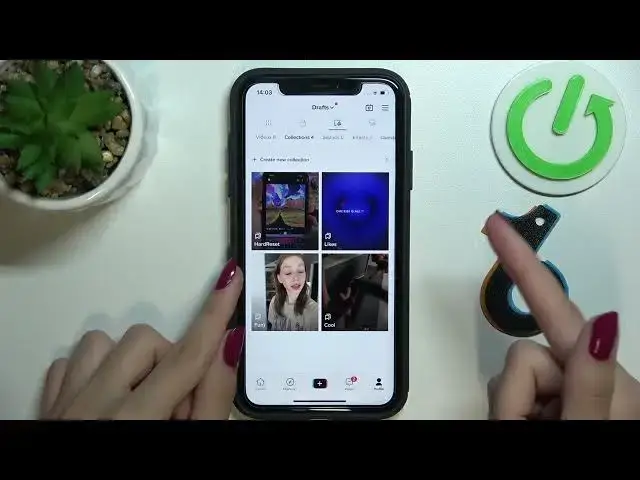
the top two. And right now we can check all of the created collections of our TikToks. So as you can
2:30
see this is our new one, hardrisset. Let's pick on it one time to check all of the added TikToks
2:37
here. You can smoothly manage this collection and how to add another TikTok to this collection
2:45
how to do this. So I will show you this process again. So as an example, I will choose this TikTok
2:54
and I right now I will add this TikTok to our newly created collections that we created
3:01
before. So let's tap on the saved key again, on the manage option and later let's choose
3:08
our collection that we want. It will be this one hardrisset. So let's pick on it one time
3:15
and as you can see we have added our TikTok to this collection. Let's go. I will refresh our
3:22
collections list after swiping our profile page to the bottom. Later let's pick on this
3:29
collection one time and as you can see right now we have two different TikToks that we added
3:36
to this collection successfully. So guys, right now you know how to work with this option and
3:42
we hope that this video was useful and needful. Don't forget about likes and of course subscribe
3:48
to our Hardrisset, Info, YouTube and TikTok channels. Bye-bye