0:07
In front of me I have the Ledger Nano X and today I'll show you how to add your Dogecoin
0:12
account to the Ledger itself. So to get started obviously you will need the application either on your Windows computer
0:21
or on the phone and the application works on literally every system and also every phone
0:28
Well, Android or iOS based. I already have it downloaded so I'm just going to quickly open it up but obviously if you
0:35
have never done this you just need to go to Play Store or App Store and get it from there
0:41
And go through a setup process which the application actually forces you through it so once you
0:48
go through it you will then see your device which for me is the Nano X right here
0:53
So obviously you want to navigate into the manager right here so you can see your device
0:58
Select it, it will load it up. It is going through Bluetooth the way it's connecting to the device but it is kind of
1:08
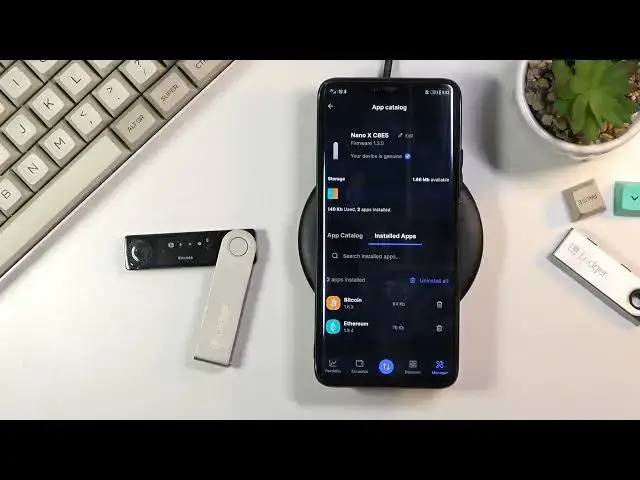
slow so just give it a moment. And there we go, we can now see basically everything that is on the Ledger itself
1:20
So I have two different wallets already installed. You can manage them right here so you can remove them if you wanted to
1:27
I can install new ones right over here. And you can also see how much storage you have left
1:33
Now as you can see this device does not have much storage on here
1:38
It only comes with 1.8 megabytes and even though the size of this is of a huge USB stick
1:44
1.8 megabytes is just kind of a joke in my opinion. So obviously you have way more currencies right here to choose from than you actually
1:53
have storage on this little Ledger. Now anyway let's go back to the actual wallet right here or the account
2:02
So we're looking for Dogecoin. So let's select our Doge which is right here and all you need to do is click on install
2:11
Now Doge is one of those a bit better ones which has only 4 kilobytes which as you can
2:18
see it already got transferred to the Ledger itself so not much time taken here
2:25
Now with the other ones which had like 76 kilobytes like Ethereum does those were transferring
2:31
for like a half a minute. So anyway once you have added the currency to the wallet or the Ledger it will give you
2:42
this pop up right here so you can now select to add account which I would recommend you
2:47
to do because otherwise you just have a crypto wallet without any kind of address to it
2:54
So once you click on that button you will be presented with different crypto assets
2:59
right here so we are interested obviously in the Doge. So I'm going to select and then select your Ledger
3:07
On the Ledger itself it will show you up that it wants to open up the application so press
3:12
both of the buttons at the same time to confirm it and this will start another painfully
3:17
long connection to the Ledger. And this will start synchronizing
3:27
Give it a moment it will show our wallet in a second and from there you should see the
3:33
button continue. There we go at the bottom. So once you click on it you can now go to the account and you can actually gauge the
3:40
account so for instance receive, select continue without my device and there we go we have
3:46
now our wallet address, QR code, that's probably all you need to do or all you need for this
3:56
So anyway if you found this video helpful don't forget to hit like, subscribe and thanks