0:00
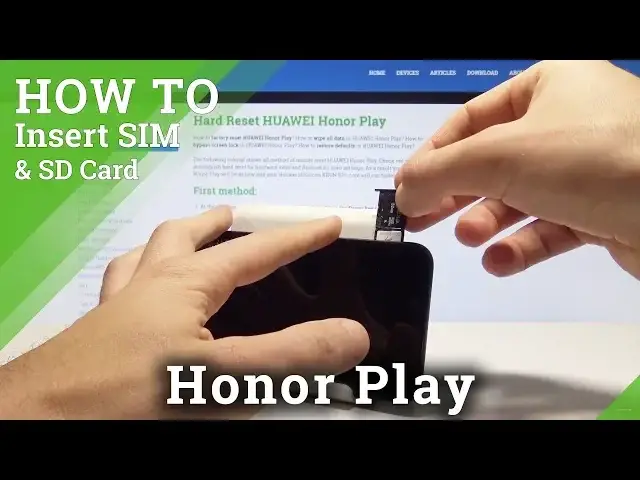
Here I have Huawei Honor Play and let me show you how to insert here nano SIM and micro
0:12
SD card. So at the very beginning let's start by pressing the power key
0:17
Let's choose power off and touch power off again just to confirm the whole operation
0:21
Then you need to find the slot to your cards. The slot is located right here at the left edge of the device
0:30
So let's use some thumb or special eject tool to open this slot
0:34
Here I have simple paper pin. Let's just press it right here to open this slot
0:41
Alright now you can remove the whole thing from your device. So let me do it
0:47
And here you can insert micro SD and nano SIM card. The slot for micro SD can be also used for the nano SIM card
0:56
Let me show you. You can place the nano SIM card right here or you can use the following slot for micro SD
1:06
Here I have micro SD with the characteristic edge right here. Let's place this card right here and now let's use this slot for the SIM card
1:16
Now you need to press the whole thing into your device. Press it to the end and simply switch on the device to check out if both cards are working properly
1:32
Keep holding power key and wait a couple of seconds
1:41
Alright let's unlock the screen. Here let me find settings. Let me make my screen a little bit brighter
1:49
Let me use wireless and networks. Choose dual SIM settings. As you can see my device is reading my SIM card so it's a good sign
1:58
Now let's go back and choose here also the storage and as you can see the device is reading
2:05
the memory card so everything went well. I can use both cards on my device
2:10
Thank you for watching. Please subscribe our channel and leave thumbs up under the video