0:00
Welcome. I'm Fenomi Zemorola, One 5G and today I will show you how you can hard reset this device
0:05
through recovery mode. Now this process will allow you to get rid of screen locks so if you have one
0:14
set that you just don't know this will just completely remove it. Now downside of this is
0:19
that if you are also logged into a Google account and you do this the device will become FRP locked
0:24
and what that means is once the reset is finished and you're going to the setup process you will
0:28
need to verify one of the two things either the previously set up screen lock which assuming you
0:34
don't know that only leaves you with one option which is Google account so you'll need to log in
0:38
with the same Google account that was previously signed in on this device. Now if you don't know
0:44
either of those I'll be also making a video on how you can just completely bypass this and then
0:49
completely remove it as well so if you're interested in this stay tuned that will be basically a next
0:54
video I'll be recording. So anyway to get started I'm going to lock the device just so you can see
0:59
that I do have a pattern set I am also logged into a Google account like I mentioned so the device
1:03
will become locked for me and I'm going to progress from here as though I don't know my pattern so
1:08
let's hold power key select power off. Once the phone turns off hold power and volume down at the
1:14
same time. This will take us to boot mode and in here using volume keys you want to select recovery
1:26
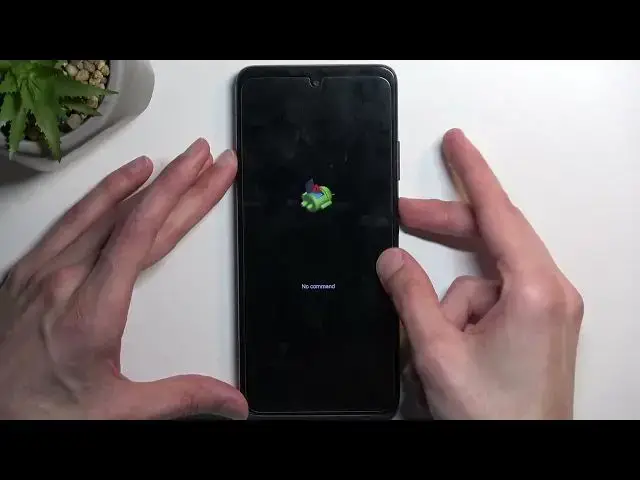
mode which will show up right here. There we go confirm it with power key. Next thing we'll see
1:32
is Android with no command so once you do you want to hold power key and while holding it you'll press
1:37
volume up once. So power press volume up and there we go and this takes us to recovery mode and here
1:45
again using volume keys you want to scroll down and select wipe data factory reset confirm with
1:51
power select factory data reset confirm it at the bottom you'll see formatting data or wiping data
1:58
and then data wipe complete should be the next thing we will see. Any moment now there we go
2:04
at which point reboot system now will be selected by default so press power key once again
2:09
and this will now reboot the device and continue the process of resetting
2:14
and the background because of it it will take the device a little bit longer to boot back up
2:18
but once it does we'll be presented with Android setup screen so I'll be back once that is visible
2:23
for me and as you can see the process is now finished and you can set up your phone however you like
2:49
So if you found this video helpful don't forget to hit like subscribe and thanks for watching