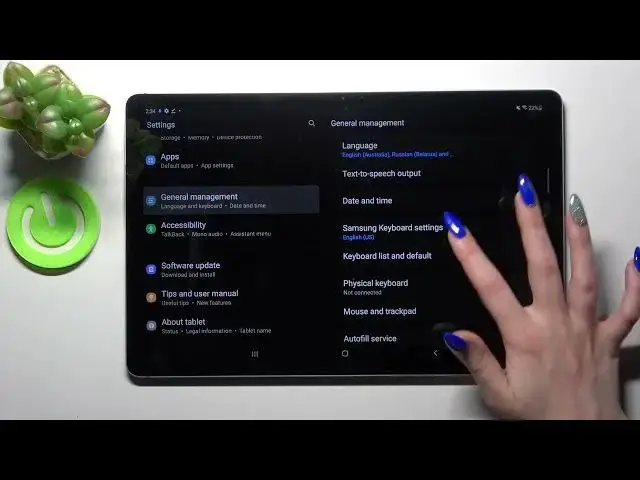

How to Enter Text Correction Options on SAMSUNG GALAXY TAB S7 FE - Text Correction Options
Apr 7, 2024

To learn more tutorials about SAMSUNG GALAXY TAB S7 FE:
https://www.hardreset.info/devices/samsung/samsung-galaxy-tab-s7-fe/tutorials/
Hi there! Are you wondering how to Enable Spell Check on your SAMSUNG GALAXY TAB S7 FE? If you are, then you should check out this short video tutorial. Today, in this video, our specialist is going to explain to you how to Enter Keyboard Settings on SAMSUNG GALAXY TAB S7 FE, and then how to go to the Text Correction Options list. Find out how to Turn On Spell Check on your SAMSUNG GALAXY TAB S7 FE so that all misspells are highlighted. Let's follow the instructions step-by-step described by our expert and try to perform this operation yourself. If this video was useful for you, leave a like, leave a comment, and subscribe to our Channel. Visit our YouTube Channel to discover more video tutorials about your SAMSUNG GALAXY TAB S7 FE and other devices. In case you have any questions, ask them in a comment. Thank you for staying with us and watching our videos!
How to Turn On Spell Check on SAMSUNG GALAXY TAB S7 FE?
How to Activate Spell Check on SAMSUNG GALAXY TAB S7 FE?
How to Enter Keyboard Settings on SAMSUNG GALAXY TAB S7 FE?
How to Turn On Text Correction on SAMSUNG GALAXY TAB S7 FE?
How to Find Text Correction Options on SAMSUNG GALAXY TAB S7 FE?
How to Activate Text Corrections on SAMSUNG GALAXY TAB S7 FE?
How to Enter Text Correction on SAMSUNG GALAXY TAB S7 FE?
How to Enable Word Correction on SAMSUNG GALAXY TAB S7 FE?
How to Correct Words on SAMSUNG GALAXY TAB S7 FE?
#SAMSUNGGALAXYTABS7FE #SpellCheck #TextCorrectionOptions
Follow us on Instagram ► https://www.instagram.com/hardreset.info
Like us on Facebook ► https://www.facebook.com/hardresetinfo/
Tweet us on Twitter ► https://twitter.com/HardResetI
Support us on TikTok ► https://www.tiktok.com/@hardreset.info
Show More Show Less