0:00
Hi everyone, in front of me I've got Xiaomi Redmi Note 12S
0:03
and let me share with you how to enable the Night Light or Eye Comfort mode
0:11
So I think I will start with showing you much faster access to this feature
0:16
so whenever you want to quickly turn it on or off. And after that I'll show you how to customize this mode
0:23
So in order to quickly turn on and off this mode, we have to unroll the top bar and unroll it fully
0:30
Do it on the right side because as you can see on the left you will have the notifications
0:34
So do it from the right side. Here we have to find the reading mode
0:40
As you can see this is the name of the Eye Comfort mode in this device. So basically just tap on it and you can see that the screen turns a little bit yellowish or amber
0:48
It is in order to filter the blue light. What is more, it will be easier for you to look at the screen at the dim light
0:54
Of course you can turn it off in the same way here and it will be turned off
1:00
So right now I can show you the customization of that. So let's enter the settings
1:06
Of course you can enter the section just by tapping and long pressing the icon on the upper bar
1:13
Here we have to enter the display and tap on the reading mode. Let's turn it on and here probably you can see better that the screen turns the colors
1:25
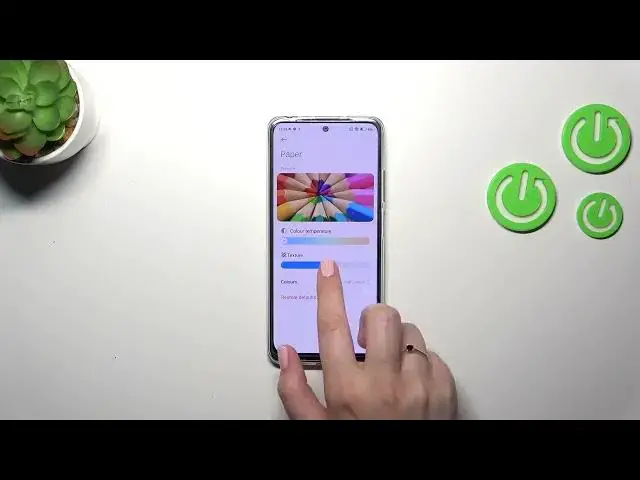
Here we've got the modes also, the classic and the paper one. The only difference is that in the paper one we will have the paper-like texture in the background
1:33
I will show you both. Let's start with the classic one. We can customize it just by tapping on this arrow here
1:40
As we can see we've got the color temperature switcher. We can check it on the preview how it will affect the colors
1:47
By going to the left we can make it cooler and by going to the right much much warmer
1:53
It's up to you of course. The same situation with the paper. I'm not really sure if you can see any difference
1:58
However on the background you can see really this paper-like texture. Let's enter those options here
2:06
In the same situation the switcher with the color temperature, warmer... Oh, hello
2:13
Okay, warmer and colder. Here we've got also the switcher for the texture
2:18
So maybe if I'll set it on the right you will see it
2:23
Right now this texture and this paper is I would say like sharper
2:27
And on the left it's more blur. You can change the colors also from the full colors to light colors
2:36
And black and white. As you can see after picking black and white everything will be displayed in monochromatic colors
2:43
You can pick light colors also. And in the comparison for the full colors those are a little bit dull and washed out
2:51
Of course you can restore defaults. So basically it's up to you how you want to set it
2:58
Just set it on the options which are the most comfortable for you
3:02
And you can schedule this feature also. You've got two different options
3:06
So you can custom the period. You can pick the start and the end time
3:10
Or you can set good night's read. And basically your device will automatically decide when the sun sets and sun rises
3:16
Or it is I believe location based. Up to you. However I prefer a simple option to turn it on and off manually
3:27
All right so that would be all. Thank you so much for watching. I hope that this video was helpful
3:32
And if it was please hit the subscribe button and leave the thumbs up