0:07
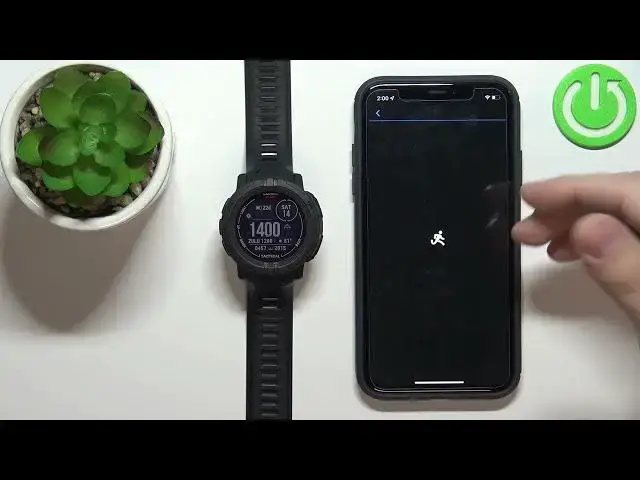
I have Garmin Instinct 2 Solar Tactical and I'm gonna show you how to enable the phone notifications for this watch on the iPhone
0:17
Before we start, your watch needs to be paired with an iPhone via the Garmin Connect application
0:23
Once the devices are paired, we can continue. I musimy zrobić to, że to pozwoli to pozwolić, że są za to pozwolić na Garmin Connect application
0:34
i do sendenie notifications do watch. So, let's open the settings on our iPhone
0:41
In settings, let's scroll down. And at the bottom of the settings page you have list of applications installed on your iPhone
0:51
On this page find the Garmin Connect application. Tap on it. And here make sure that the Bluetooth option is enabled for the Garmin Connect application
1:02
Once the Bluetooth is enabled, tap on notifications. Make sure that the allowed notification option is also enabled
1:09
And once those two options are enabled we can go back scroll all the way up through the settings find the Bluetooth option tap on it Tutaj czy rather find the Instinct 2 SolTag on the list of devices Tap on the info icon next to it
1:27
Then tap on, not forget, don't forget the device, my bad. On this page, make sure that the shell system notifications is enabled
1:34
This option. Once it's enabled, you can close the settings. Okay. And after that, we can open the Garmin Connect application on our iPhone
1:45
w aplikacji, let's tap on more scroll down, select the Garment Devices
1:52
tap on Instinct 2 Solar Tactical to open the device page for your watch and here we have the option
2:01
called Notifications and Alerts, tap on it tap on Smart Notifications and here we have General Use
2:09
During Activity and Signature, tap on General Use and we can customize the settings for the notifications
2:17
We can enable them or disable them by tapping on the switch
2:21
and then we can tap on calls, texts, apps, privacy and timeout
2:26
If you tap on calls, here you can select if it's enabled
2:30
So notifications for the calls, if they're enabled, then we can enable the sound or disable the sound and we can also enable or disable the vibration Once you done with calls go back tap on texts This is for the text messages and you can enable it like I said before
2:47
enable the sound or vibration or disable them. Next we have apps and again we can enable the notifications for the apps
2:56
enable the sound or vibration or disable the sound or vibration. OK
3:02
And below the apps we have Privacy option. We can tap on it and we can basically select Press Start or Risk Gesture
3:11
So I believe you need to perform one of these actions to see the notifications
3:15
And last option is Timeout. And here you can basically set the timeout for the notification on your watch
3:22
So, for example, you receive the call on your phone. If you set the timeout for one minute, the watch will wait one minute until it's going to vibrate to inform you that
3:30
inform you that you had a call on your phone. Right. So if I select one minute basically
3:37
OK. Once you're done with general use, you can go back and tap on during activity
3:41
and here you can customize the same settings. But this is for the time when you basically
3:49
tracking the activity on your watch. So if you don't want to get interrupted, you can disable the notifications
3:56
If you want you can also enable I mean customize the settings the same z tym co we did for the other not during activity And as you can see I already received the notifications on my iPhone and I got it on my watch
4:10
So it's working. But once you're done customizing, you can go back and you can also enable the signature if you want to or disable it
4:17
OK, and after you're done with the notifications, you can close the app
4:24
Now you should be able to receive notifications. So I'm going to press back button on our watch
4:31
and I'm going to send myself a message on the Discord just to prove that it's working
4:44
As you can see, I received the notification on our phone and also on the watch
4:49
Możesz klikować to gps to połączenie i tak jak to połączenie. Ok, to jest jak to wytrzymać telefon notyfikowanie na iPhone