0:00
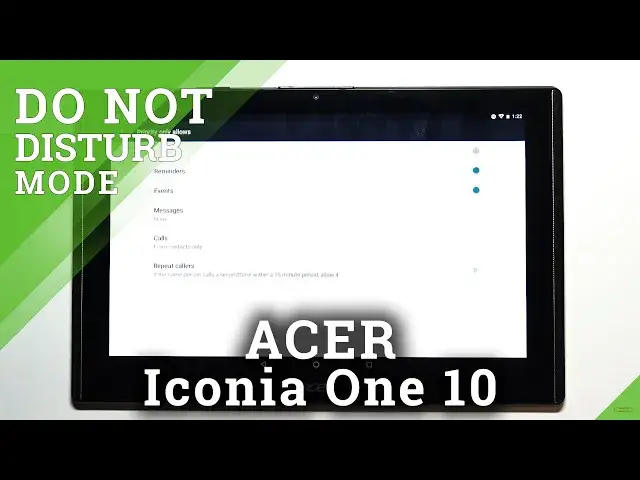
Hi, in front of me I have Acer Iconia 1 10 inch Model B3-H-A-40 and I'm going to show you how to enable the do-not-disturb mode on this device
0:19
First, we need to open the quick panel to do it. Simply swipe downwards from the top of the screen like this, then swipe again
0:30
Again down like that to open the quick panel. And here we have Do Not Distermode icon to enable the mode
0:37
You can tap on it. This menu will appear. And you can customize the Do Not Distermode settings right here
0:45
You can select the profile, for example, total silence, alarms only, and priority only
0:54
If you select Total Silence, this will block all sounds and vibrations, including
0:59
alarms, music, videos and games. If you select alarms only, only the alarms will be
1:07
hearable, they won't be blocked. And if you select priority only, you want to be able to hear
1:15
the vibrations, sounds, except from alarms, reminder, events and colors you specify
1:23
Okay. Now, after you select the profile, you can also select for how long
1:29
do not disturb mode will be turned on and you have options like until you turn this off
1:33
basically it's going to be turned on until you turn it off or you have option for one hour
1:38
and here you can basically add and subtract the time you can set the time to your liking but let's open
1:47
it again and once you're done you can tap on done or simply tap on screen to go back
1:59
Okay now we can tap on more settings right here to open the do not disturb mode settings like this and here we have a few options
2:12
Priority only allows, automatic rules, and block visual disturbances. If you tap on priority only allows
2:19
here you can customize basically the priority-only profile. And you can turn on and off some things like reminders, events
2:29
If you turn them off, You won't hear the sounds and notifications about them
2:34
If they're turned on, you will hear the sounds and notifications. Below events, we have messages
2:40
and this option allows you to basically customize from whom you're going to get the sound notification
2:47
when somebody is sending you a message. Then you can select from anyone, from contacts only, from start contacts only, and from none
2:56
If you select from contacts only, you will get the sound notification when only people from your contacts list are writing to you
3:03
If you select from start contacts only, you will get notification only when the start contacts
3:08
favorite contacts, are writing to you. And from none, of course, all the notifications will be blocked
3:15
And from anyone, every notification will be allowed from messages. Below we have calls
3:22
This is the same option as for messages, but for calls, basically you can select from whom you're going to get
3:29
the notifications and sounds about the calls. And below we have repeat callers option
3:36
And what this option does is basically if the same person calls you more than once
3:40
within a 15 minute period, the sound notification and vibration will go through
3:48
when they do not disturb mode is enabled. And you can enable this option or disable it by tapping the switch like this
3:56
Okay, let's go back to do not disturb. Here we have also automatic rules
4:00
Tap on it. And here we can basically set up a schedule for our Dunan Distair mode
4:05
We have few pre ones like Weekend Weeknight and Event We can tap on them to edit them basically Here we can tap on rule name to change the name of the schedule Then we can tap on days and select the days on which the
4:24
schedule is going to be active. And as you can see it's selected, it has selected Friday, Saturday
4:30
but I'm going to also select Sunday like this. Then I'm going to tap on start time. And here we can
4:36
basically set the hour on which the Duna Distermode will be turning on
4:42
To do it, simply press and hold on the screen, or you can simply tap on it too
4:46
But you can tap on the hour you want to select. You can also press and hold on this green circle and drag it around like this
4:54
Depends what you like. Then release it and do the same for minutes. You can tap or drag around like that
5:03
And right here you can also change AM. and PM for some reason I can't
5:11
oh yeah I just can't hit it okay I am NPM and once you're done
5:16
simply tap okay below we have end time this is the same option but where this is the time
5:22
when you do not disturb mode will be turning off and you can set it like this
5:27
like before like that and tap okay Below we have Duna Disturb
5:39
Basically, here we can select the profile. We have priority only, alarms only, and total silence
5:45
And at the bottom, we have option called alarm can override end time. And basically, when the alarm rings, it can turn off the schedule
5:55
It will turn off itself. And you can enable the option or disable it
6:00
Here you can also enable the schedule by tapping on the switch, like that
6:05
And you can remove it by tapping on the switch. on the bin and tapping delete
6:10
Like this. You can also remove them by tapping on bin right here and tapping delete
6:15
Okay And we can also add our own rule by tapping on add rule And here we can select the type I going to select time rule Enter the name
6:28
Then tap okay. And again, we can edit the settings. Name. Days
6:45
Start time, end time. Profile
6:57
and we can also enable or disable this option. Once you're done, simply go back
7:06
As you can see, this one is enabled. Let's disable it by, basically to disable the schedule you need to tap on it to select it
7:14
And here you can you can. can enable it or disable it. Let's disable it like that
7:20
Okay, let's go back. And last option in do not disturb mode is block visual disturbances and you can here tap on it
7:28
And you have two options. Black when screen is on and black when screen is off. Basically, if the do not disturb mode is enabled, you can enable these options to block the notifications to pop up on your screen
7:42
this option blocks them when the screen is on and this option blocks them when the screen is off
7:47
and you can enable them by tapping on switches or disable them
7:52
Okay, let's go back and disable the do not disturb mode like this by tapping on the icon again
8:01
in the quick panel and basically that's how you enable the do not disturb mode
8:06
on this device. Thank you for watching. If you found this video helpful
8:12
please consider subscribing to our channel and leaving the like on the video