More tutorials for your POCO C50 on our website:
https://www.hardreset.info/devices/poco/poco-c50/tutorials/
Welcome to our tutorial on how to enable automatic system updates on your POCO C50 smartphone! Keeping your device up-to-date is crucial for ensuring that you have access to the latest features and security patches. In this video, we will guide you through the process of accessing your device's system settings and enabling the automatic update option. Our step-by-step tutorial is easy to follow and will help you enable automatic system updates on your POCO C50 in just a few simple steps. Stay up-to-date and secure with our helpful tutorial. Thank you for watching and don't forget to subscribe to our channel for more POCO C50 tips and tricks!
How to Use Automatic System Updates on POCO C50?
How to Enable Automatic System Updates on POCO C50?
How to Activate Automatic System Updates on POCO C50?
#pococ50 #systemupdate #xiaomi
Follow us on Instagram ► https://www.instagram.com/hardreset.info
Like us on Facebook ► https://www.facebook.com/hardresetinfo/
Tweet us on Twitter ► https://twitter.com/HardResetI
Support us on TikTok ► https://www.tiktok.com/@hardreset.info
Use Reset Guides for many popular Apps ► https://www.hardreset.info/apps/apps/
Hi everyone, in front of me I've got Poco C50 and let me share with you how to activate automatic system updates on this device
0:11
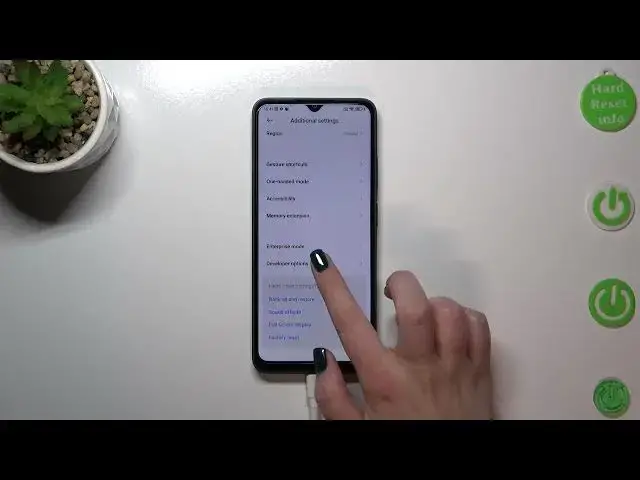
So first of all we have to enter the settings and then let's scroll down in order to find additional settings. Let's tap on it
0:18
Now we have to scroll down and tap on the developer options and if you cannot find the developer options in your device in this section, no worries
0:27
We've got the tutorial of how to enable the developer options so you can check it and learn more about the developer options and how to activate them
0:36
So I highly recommend to check it. So let's enter the developer options after the activation and now we have to scroll down just a little bit
0:43
As you can see right here we've got the automatic system updates option. In my case it is turned on so if you've got it turned off all you have to do is to simply tap on this switcher
0:54
and from now on your device is allowed to apply the updates when it will be restarted. So you don't have to manually update your device but you have to remember about restarting it from time to time
1:05
Of course you can turn it off the same way. So basically that's all. This is how to allow automatic system updates in your Poco C50
1:14
Thank you so much for watching. I hope that this video was helpful and if it was please hit the subscribe button and leave the thumbs up