0:00
Welcome! In front of me I have Garmin Forerunner 955 and I'm gonna show you how to edit the controls menu on this watch
0:13
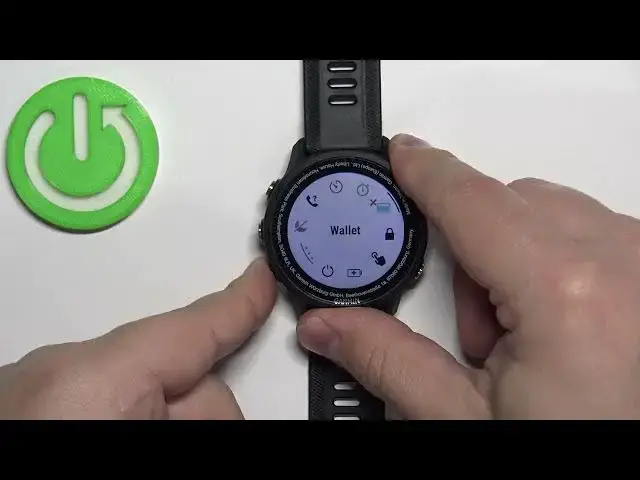
First, let me show you how to enter the controls menu. To do it, simply press and hold the light button and keep holding it until the menu appears on the screen
0:23
And this is the controls menu. In it we have a couple of icons or shortcuts, you could call them, like Do Not Disturb Mode, Sync, Phone, Assistant, Power Off and stuff like that
0:34
And we can do a couple of things with this menu. We can add new icons, remove the icons and reorder them
0:40
To do it, simply press and hold the up button to open this menu
0:45
And as you can see we have Add Controls, Reorder Controls and Remove Controls
0:50
So, first let's add a new icon. So, select the Add Controls, press the Start button and here we have the list of icons we can add
0:59
Find the one you like to add, select it and press the Start button to add it
1:04
Then press Back button and once you're in the controls menu you should see the icon. As you can see it appeared right here
1:12
Now, let's open the menu again and this time let's remove the controls
1:18
Select Remove Controls, press Start and now find the icon you want to remove and then press the Start button to confirm
1:30
Like this. And once you're done you can press the Back button
1:34
And to reorder them, select Reorder Controls and now select the icon you want to move, for example Battery Saver, press the Start button and now you can move it through the menu
1:47
And once you're done, once you're done rather, press the Start button to confirm the position. Like this
1:53
And then you can press the Back button. And once you're done customizing your menu, you can press the Back button a couple of times to go back to watch face
2:01
And that's how you edit the controls menu on this device. Thank you for watching. If you found this video helpful, please consider subscribing to our channel and leaving a like on the video