0:00
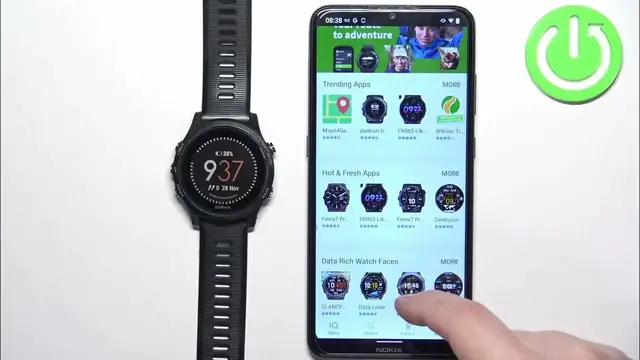
Welcome! In front of me I have Garmin Forerunner 935
0:04
and I'm gonna show you how to download additional watch faces on this watch
0:11
Start. If you want to download additional watch faces on this watch, your watch needs to be paired
0:16
with a phone via the Garmin Connect application. And once the devices are paired together
0:21
we can continue. And now you will need to download and install the Connect IQ Store application on
0:27
the phone that is paired with your watch. So make sure you have the internet connection and
0:31
Bluetooth enabled. Once you do, open the Play Store or App Store depending on what type of
0:37
device you're using. I'm using the Android device so I'm gonna open the Google Play Store
0:41
but if you're using Android, rather not Android, my bad, iPhone, you can open the App Store
0:47
And in the App Store, tap on Search and type in Connect IQ Store
0:59
And then tap on Search. And you should see this application on the list. Connect IQ Store by Garmin
1:04
with this icon. Once you see it, tap on the Install button to download and install it
1:17
And after the application is done installing, you can tap on the Open button to open it. In the app, tap on Welcome
1:26
Then tap on Continue. Here, check the box, tap on Next. Allow the required permission
1:36
And right here, we have the Connect IQ Store. You can scroll through the list of categories
1:42
As you can see, you have different apps and watch faces. I'm gonna tap on Search right here
1:47
and select Watch Faces to narrow my search only to watch faces. Now, find the watch face you would
1:52
like to use. Once you find it, tap on it. And once you see the, or rather select the
2:01
watch face, you will open the info page for it. Here, you have description
2:06
the screenshots, additional information. You can also tap on Compatible Devices. And here, you can check if your watch is on the list of the compatible devices
2:17
Let's see for a runner. And it's right here. So that means that the watch face is compatible
2:22
with our watch. And once you're done checking the info, you can tap on Install
2:26
Allow. And wait. Once you see the pop-up on the screen, that means that the watch face is done installing
3:02
You can tap on Get It. And as you can see, it will also be applied on your watch
3:09
If you want to check the list of watch faces you installed on your watch already
3:13
you can go to the main page of the IQ Store, then tap on My Device, My Watch Faces
3:20
and here we have the list. You can tap on them to see the info, uninstall them, or stuff like that
3:26
Okay, and once you're done, you can close the Connect IQ Store app
3:35
Oh damn, that was quite a few apps opened there. Anyway, that's how you install
3:40
or rather download, additional watch faces on this watch. Thank you for watching. If you
3:45
found this video helpful, please consider subscribing to our channel and leaving a like