0:00
Welcome. In front of me I have M-A-sfit GTS 2E and I'm going to show you how to install additional
0:07
watch faces on this watch. Before we start, if you want to install additional watch faces on this watch, your watch
0:16
needs to be paired with a phone via the ZEP application. Also, you can install additional
0:22
watch faces in two ways. The first method is to do it through the Zep application, the
0:28
official ZEP application and the second method is to do it through the third party application
0:32
you can download from the Google Play Store or App Store basically
0:38
First I'm going to show you how to do it through the Zep application and then I'm going
0:42
to show you how to use the third party application. Now let's continue
0:47
So let's open the Zep application on the watch that, or rather on the phone that is paired
0:52
with our watch, my bad. Once you open the application, you should see the home page
0:58
Now, tap on the profile icon and select the M-A-Sfit GTS-2E from the list of devices
1:05
Here, now you should see the device page for your M-A-S-Fid GTS-2E
1:11
and on this page you should find the option called WatchFaces. Once you do, tap on it to enter
1:18
And this will open the Watchface store, I would say, basically. You have a list of different categories of watch faces
1:25
You can scroll through this list find the category you like and for example you can select the watch face from here or you can tap on more option next to the category name to open the whole category and you can browse it right here
1:38
and see the list of watch faces so find the watch face you would like to use on your watch then
1:44
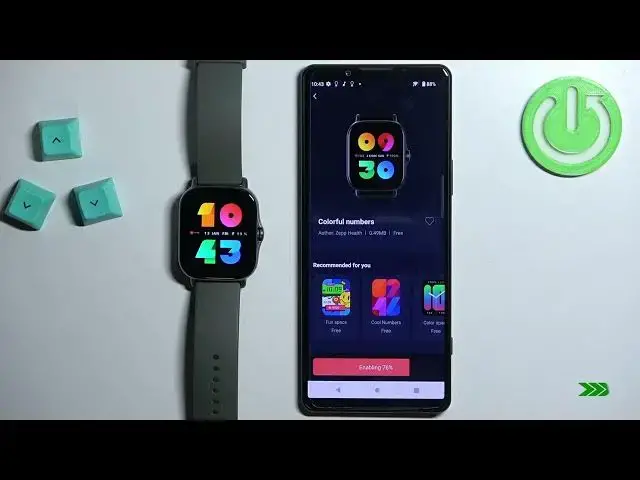
tap on it to select it and once you select it you have the description of it also recommendations
1:50
and if you want to install it on your watch simply tap on the sync button
1:57
like this and it should start sinking with your watch. Wait until it's done
2:06
And once it's done, the watch face will be applied on your watch
2:10
You can also go back to the watch faces menu. You can tap on mine here to open the list of watch faces installed on your watch
2:20
And you have a list right here. As you can see, it appeared right here on the list
2:24
And basically you can switch between different watch faces if you want to by tap on it. And if you want to remove the watch faces you installed, you can tap on more right here
2:34
Like that. Tap on delete. Select the watch face you want to remove. Tap on delete. Then tap on
2:41
OK. And the watch faces should be removed from your watch. If it's still right here on the
2:48
list of watch faces installed on your watch, you can again tap on delete
2:53
and tap right here to select it, tap on delete and tap on okay to remove it completely from your watch
3:00
Like that Okay so that how you install or download additional watch faces through the Zep application Now let do it through the third application
3:11
So make sure you have the internet connection and Bluetooth enabled. Of course, open the Google Play Store
3:19
Tap on search. Also, you can use the App Store if you're using iPhone
3:23
It doesn't need to be Google Play Store. Basically, open the App Store. And type in Amaze
3:30
face, like this, and tap search. And you should see this application called Emma's faces
3:38
Tap on it. Select it, then tap on the install button to download and install it
3:47
And after the application is done installing, we can open it, and you can do it by tapping
3:50
on this open button. After you open the application, allow the permission, and you should see this screen, basically
3:58
Now tap on select your device. this will open the list of devices
4:02
select the M-A-Sfit GTS series, then tap on select model, and select the GTS2E
4:11
like this, and tap on apply. After you select the device model
4:17
it will open the homepage of this application, and you can scroll through the list of different watch faces
4:22
as you can see, and you can select one if you want. For example, let's select
4:27
I don't know, this one. You have also you have different categories right here
4:32
You have random I believe popular favorites and stuff like that But let just find the watch face we want to install on our watch
4:43
Like I said, maybe this one. So tap on it. As you can see, we have a preview right here
4:50
Description, when it was last updated, how many users have it in favorites and stuff like that
4:55
Scroll down until you find the download button. Tap on it. And you have
5:00
an option to select the model. basically the version of the watch face
5:04
and we have English version and some different version. I'm going to select the English
5:08
one so I'm going to tap on GTS2 and S7 then tap on
5:14
connect, allow the permission for the location allow the permission to connect
5:20
and it should detect your watch tap on connect and then tap on
5:26
install watch face and it should start installing on your watch. And after it's done, it will appear on your watch
5:43
As you can see, it will be applied. And then you can close the application
5:49
And that's how you install additional watch faces on this watch. Thank you for watching
5:55
If you found this video helpful, please consider subscribing to our channel
5:58
and leaving the like on the video