0:00
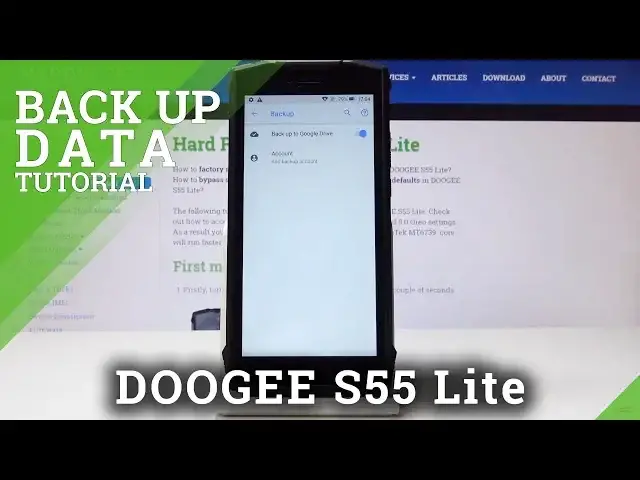
Here I've got the GS55 Lite and let me show you how to enable Google Backup on the following device
0:13
So at first, let's open the list of all applications, then find and pick the settings
0:18
Now scroll down to the very bottom of the list and pick System
0:22
Now go to Backup and simply activate it by tapping on this switcher
0:28
And that's it. It's already active, but you need one more thing. You have to create a backup account
0:33
So click on Account, give your device a few seconds to check all the information
0:40
And now it's time to log in with your Google account. And if you don't have one, simply click on Create Account
0:46
I do have mine, so I will simply enter it. It's hard. Reset. Info. One
0:53
Add gmail.com. One. Add gmail.com. And click on Next
1:12
Info. One. I missed one letter. Actually, I mistyped it. Then click on Next
1:20
And now enter the password. So just let me show you if you will be entering it
1:24
Just click on the eye icon to check if you are typing it correctly
1:28
So let me do it off the screen. And then click on Next
1:37
And here just come along with all Google Terms of Services and Privacy Policy
1:43
If you will click on the link, you will be able to read all of them
1:48
Once you come along with it, and if you agree with the terms, click on I agree
1:59
And as you can see here, backup option is active. So from now on, your data will be safe as it will be permanently backupped
2:09
So click on Accept. And as you can see here, it is the final notification that backup includes absent of data
2:17
email history, contact, device settings, and messages. So click on OK. And go back to the standard usage of your phone
2:27
So that's it. Thank you for watching. Please subscribe our channel and leave the thumbs up