0:00
Welcome, for now I'm MeizuM5S and today I will show you how you can enable and set up
0:12
the portable hotspot. To get started you'll want to pull down your notification panel, expand it and simply look
0:18
for the hotspot toggle, which for me is located right over here
0:22
Once you find your toggle, you can hold it. This will quickly take you to the settings where you will be able to customize how it
0:28
will function. Now, additionally, because you're probably doing this the first time around, you most
0:34
certainly want to enter the settings just so you can change things like for instance
0:37
the hotspot password or just even look at it. So we're going to go right here, LAN Tethering Configuration and let's see, is it here
0:56
It should be somewhere here. Oh, okay. So nevermind, that actually seems to be incorrect what I just said, because for the stupidest
1:09
reason, Meizu decides to not protect your hotspot so anybody can connect to it
1:15
Now this is the first time I honestly came across this, no other device from hundreds
1:21
of devices that I had here have ever done this. So again, you still want to navigate into the settings and actually set up a password
1:29
and protect your hotspot, because otherwise literally anybody can connect to your hotspot
1:34
and use your mobile network. Obviously you don't have unlimited network, most likely on your phone
1:42
So yeah, it might be drained fairly quickly if you don't do that
1:46
So again, as you've just seen, you hold that toggle and then you navigate to LAN Tethering
1:51
Configuration, Security, you change that to WPA right here and then all you need to do
2:00
is set up your hotspot password. Now it does need to have 8 characters in length and that's about all the requirements
2:09
Additionally, we have Hide Network, I don't recommend you to select this, otherwise you
2:14
will need to put in the network name, which is right here, into a field and password at
2:20
once when you're in your Wi-Fi password. Let me quickly demonstrate what I mean
2:28
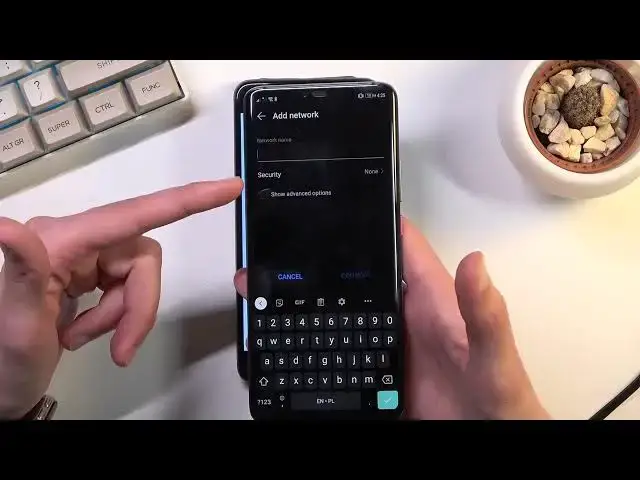
So right here as an example, that's my phone. When you're, if you choose to hide your network, you would literally need to scroll all the
2:38
way down and select Add Network and then select Network Name, then choose a security and just
2:47
basically add everything manually, which is, to be honest, not very fun
2:53
So anyway, just set a password, select OK, assuming you can, but I can't for some reason
3:02
Now the question is why can't I, oh, I chose the wrong one, so we're interested in a second one
3:14
And then we can select OK, this will save it, and all you need to do now is simply tap
3:23
on a toggle to enable it. There we go, now it took a while
3:28
Additionally, if you could see it, it turns off Wi-Fi because it uses the same antennas
3:33
so it is going strictly from your mobile network, so keep that in mind
3:40
And once you're done with it, you can simply tap on it again, this will re-enable the Wi-Fi
3:44
as you can see, and everything will go back to normal. Additionally, it also will not be consuming as much battery as when it's running
3:53
So that is basically how you would set up your hotspot and use it, and if you found
3:56
this very helpful, don't forget to hit like, subscribe, and thanks for watching