0:00
Welcome. I'm from EaseUS WePo S5 and today I'll show you how to copy contacts from your
0:11
SIM card to the device. And to get started, let's open up the standalone contacts app
0:17
which is right over here for me. Once you tap on it, it will show you all the contacts. Now
0:22
as you can see, at the moment, all the contacts that are on this device are located on the SIM
0:27
card and you can gather that based on that tiny little SIM icon with the number 2. That's the
0:33
slot that it's occupying in the device. And if I will flip it over, you can see it
0:38
SIM 2, that's where my SIM card is. SIM 1 is empty. So to get started
0:45
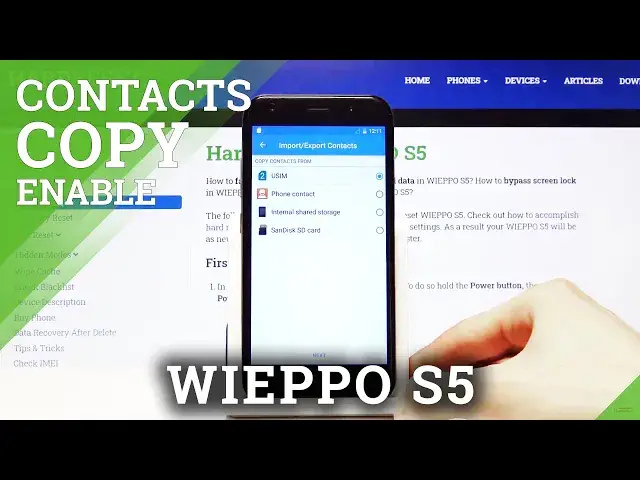
tap on the three dots, go to Import-Export, and from here you will see a couple options. So we
0:51
have the USIM, phone, internal shared storage, or SD card. I'm going to go with the SIM and as you can
0:58
see, it shows you the SIM slot that it's here. So SIM 2, I don't have anything in SIM 1 like we've
1:04
seen, so that's why there is no SIM 1. Once it's selected, tap on Next. Copy contacts too. For me
1:12
it's showing only phone, but if you are logged in into a Google account, I believe this will
1:17
also show Google account as an option. So from here, tap on Next once you select it, and then
1:24
you can see all the contacts that are located on the phone or the SIM card. So simply select whichever
1:30
contact you want, like so, and from there, once every contact that you want is selected, tap on OK
1:39
and this will import it. And as you can see, now there are contacts without any kind of
1:45
SIM icon, so those are the contacts that are on the phone itself. And if we remove
1:52
a SIM card, hopefully we'll see if that will work. Let's try to reset it. Now there is a chance that it will keep remembering them
2:03
Yep, it still remembers them, so you'd have to reboot the device for them to disappear
2:08
But that is how you would copy contacts, and if you found this very helpful
2:12
don't forget to hit Like, Subscribe, and thanks for watching