0:00
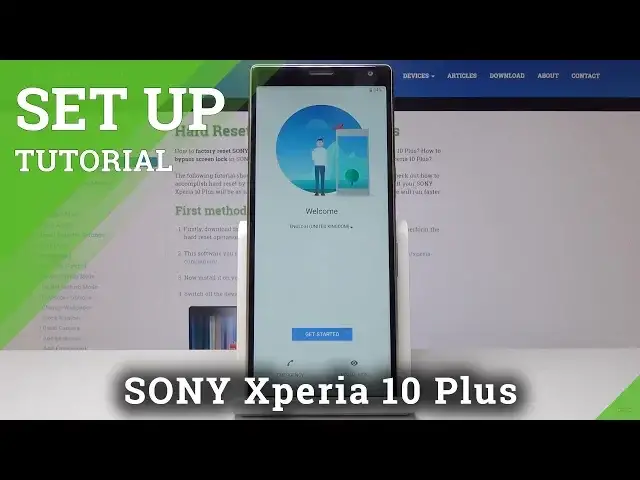
Here I have Sony Xperia 10 Plus and let me show you how to set up this device
0:12
So once you buy a brand new mobile or you just reset it, just let's go through the setup
0:17
process all together. At the very beginning, you have to select the language
0:21
So just tap on English in that case, and you can select one from the following languages
0:28
The one that suits you mostly, but I am okay with English language
0:32
So then tap on Get Started. Here you have to come along with all important information
0:39
So it's a warranty safety information over here. You can click on it to open
0:45
It's limited warranty. All the info that should be aware of, just come along with all of them and confirm that
0:55
you read it and tap on Accept. Then you can select how to connect to internet
1:00
Let me pick Wi-Fi only. It's looking for the Wi-Fi
1:10
And now I'll pick hard reset info. So it's mine. It's connecting
1:14
Checking for updates. And in a few seconds, we'll be able to log in to our Gmail account
1:31
And now you can decide if you would like to copy any data. I will skip it
1:35
Don't copy. If you have it on previous phone, you can simply copy it
1:50
Now you can log in with your Gmail account, with your phone number or email address
1:54
If you don't have one, you can create a Google account by tapping on Create Account
1:59
Let me log in with mine. So my email address is hard reset info
2:11
And now you have to enter your password
2:27
Just let me show you. If you will click on the eye icon, you will be able to see what are you typing
2:32
So it's pretty helpful while entering the password
2:42
And as only it's typed, just tap on Next. And as you can see, you've just successfully logged in with your Gmail
2:51
Now you can come along with all terms of services. So here's the privacy policy
2:58
You can come along with all these documents. You should actually, because you have to agree with them
3:03
So you have to confirm that you read them. And once you do it, just tap on Confirm
3:14
And now as you can see, here you can select the options. So if you would like to back up to Google Drive, if you want to give them access to
3:21
your location, allow scanning, send usage and diagnostic data, and all the others, you
3:27
can come along with them and select the one that you would like to have. And tap on Accept to confirm your selection of these Google services settings
3:36
Now you can add a fingerprint if you want to, but I will skip it for now. You can obviously add it later
3:41
You can add some lock screen. I will skip it for now
3:45
Skip anyway. You can talk to your assistant. It's showing the option
3:55
You can have the access to your assistant with voice match, but I will skip it as well
4:01
And you can also set some experience services as launch and support, but also I will skip
4:07
it this time. It's not necessary to set it up. Now you can see all the apps that you have
4:17
You can switch off some of them if you want to. And now it's just adding the finishing touches
4:24
You just have to be patient, but with a short... Actually, it's now..
4:29
Just tap on Finish and now you can use your device and set some other options if you want
4:35
to, for example, those lock screens or fingerprints. You can also change the wallpaper and just start using your device normally
4:44
So that's it. Thank you for watching. Enjoy using your Xperia 10+
4:49
Please subscribe to our channel and leave the thumbs up