0:00
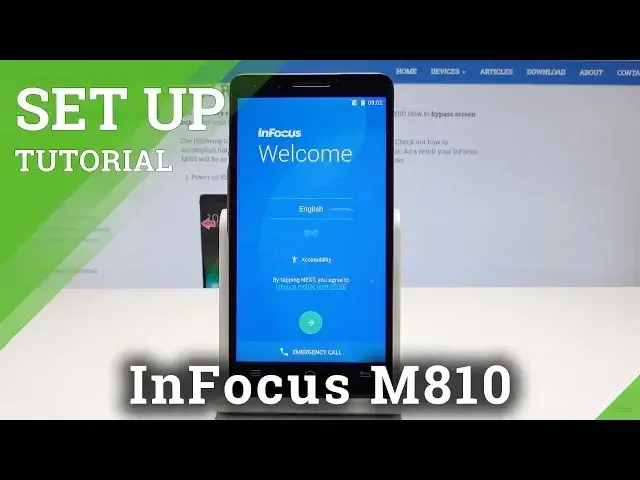
Here I have Infocus M810 and let me show you how to activate this device
0:11
As you can see here you've got your welcome panel, here you should choose your language
0:15
you can also choose here emergency code to make some emergency calls if you need something
0:19
if not let's just go next. So here you can also insert sim card
0:23
It's not necessary, you can easily skip it by using the skip button
0:27
So let me do it, let me activate my device without the sim card. Now you can connect your device to a WiFi
0:33
It's also not necessary but I usually recommend this because the WiFi connection enables a
0:37
few interesting stuff. Let me just use the password, the simplest one just for this video
0:43
The phone is connecting to a WiFi so let's wait. And now the device is checking connections
0:49
So let's wait a couple of seconds until it will be ready to go next
0:59
Alright here you've got information about tap and call, let me skip it
1:13
And here you can sign in into the Google account. It's not necessary, you can easily tap skip but I usually recommend having the Google
1:21
account to enable a few interesting stuff. So let me just enter the email
1:32
Tap next. It's time to enter the password so let me just wait a couple of seconds
1:38
Now let's enter the password. Alright so here you can tap next
1:46
One more time. Let me tap agree to terms of service and privacy policy and let's wait a few more seconds
2:08
Alright here you can set up payment information or you can do it later so let me do it later
2:22
As you can see here you can restore some data from your backups or you can choose here set
2:28
up as new to have a fresh start. Tap next. Let me here leave my backup enabled
2:36
You can also here enable or disable use Google's location service. You can help improve location services and help improve your Android experience
2:44
Let me leave enabled all of them and tap next. Here you've got Dropbox info so let me here tap next again and tap finish
2:54
That's it. The welcome panel just pops up so it means that the hardware set is done and of course
2:59
the setup process is also done so now you can activate your device
3:04
So thank you for watching. Please subscribe our channel and leave thumbs up under the video