0:00
Hi everyone, here we've got Vernee M5 and let me share with you how to change the wallpaper
0:11
on this device. So first of all we have to find and open the settings, so let me do it
0:16
And now we have to scroll down and find the device section and here we've got the display
0:20
so let's tap on it. Now we have to choose the wallpaper and here we've got some albums from which we can choose
0:26
the wallpaper from. You can choose it from live wallpapers and if you will have any compatible files they
0:31
will appear right here. You can choose something from the Google photos but it is actually your gallery
0:36
And from the wallpapers which have been pre-installed here on this device, so let me pick something
0:41
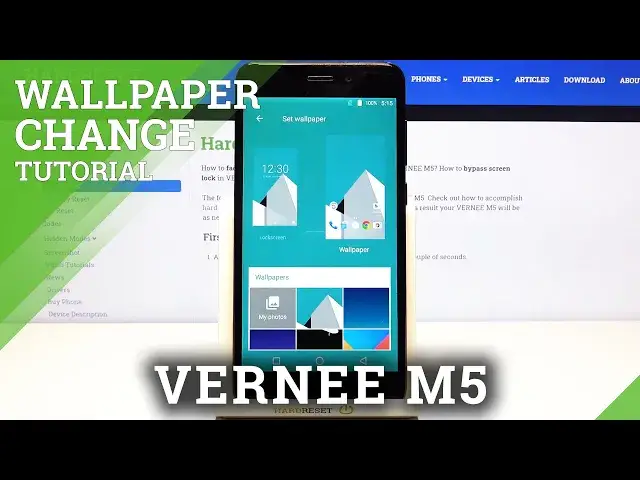
from the wallpapers. And as you can see here we've got the preview of the lock screen and home screen, so it
0:47
means that we can set totally different wallpapers for both of them
0:51
And under it we've got the wallpapers section, so here we've got some pre-installed ones
0:56
so here we've got some options from which we can choose. What's more we can tap on my photos and you will be just transferred to your own gallery
1:03
and you will be able to pick the photo and set it as a wallpaper
1:07
But let me pick something from the defaultly installed ones and let me choose for example
1:11
this one on the wallpaper. As you can see it immediately appears right here and as I said we can choose the same
1:18
one for the lock screen or you have to do is simply tap on the lock screen and now choose
1:22
the wallpaper. Let me pick for example this one and as you can see now we've got totally different wallpapers
1:29
on the lock screen and home screen. If you are happy with your choice with the results all you have to do right now is simply
1:35
tap on the back button. As you can see your device is setting the wallpaper right now, so we can go back to
1:40
the home screen and as you can see the wallpaper has been applied successfully
1:46
Let's check the lock screen and the same situation here we've got totally another wallpaper which
1:52
we've just choose. So actually that's all. This is how to change the wallpaper in your Vernee M5
1:58
Thank you so much for watching. I hope that this video was helpful and if it was please hit the subscribe button and