0:00
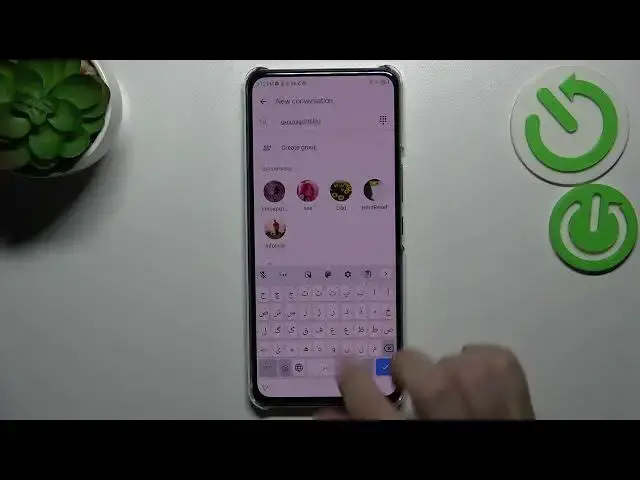
Hi everyone in front of me I've got ZTE Axon 30 and let me share with you how to change keyboard language on this device
0:11
So first of all, let's open the keyboard for example in the messages in the notes in the browser
0:18
Whatever just have the keyboard on the screen just like that And basically all you have to do is to simply enter the settings now
0:26
Let's tap on the languages at the very top tap on it. And here we've got the list of all applied languages
0:32
We've got only English. So let's tap on add keyboard and Here we've been transferred to the full full full full list of all available languages from which we can choose
0:41
so as you can see, this list is so wide and I'm pretty sure that you will find the
0:47
the language you'd like to You'd like to use just Scroll and find it
0:54
So I will pick the order one. So let's just just tap on it and depending on the language
1:01
You will sometimes be able to pick the region. So just up on it again Here we've got the keyboard types. So as you can see in my case, I've got three different types
1:09
But again, depending on the language, you will be able to choose from two three or even up to five different keyboard
1:16
keyboard types and languages So I would like to pick this one as it is the graphical language and I can show you the actual difference
1:24
So let me mark and this this keyboard and untick this option and simply tap on done as you can see
1:31
We've got the order applied. So now we can go back to the keyboard and here we've got actually two differences
1:37
So first of all the spacebar, it's not empty anymore right now
1:41
We've got the name of the language we are currently using and next to it
1:44
We've got the globe icon which acts like and the language key and it will allow us to actually change the language
1:51
So right now I'm typing English Let's say English and after tapping on the globe icon I can easily change my keyboard to the order one
2:00
so as you can see I can Right now type in order. Let's tap on it again and again English. So this is how it works
2:08
It's quite easy And now let me show you how to remove the languages because sometimes you just need to change the language not add
2:14
A different one. So let's go back to the settings tap on the languages and here from this step
2:20
We have to tap on this edit icon in the right upper corner So let's tap on it mark the language you'd like to remove and tap on the trash bin icon
2:28
We've got only English left or any other language you'd like to
2:32
You'd like to leave here. And as you can see after getting back to the keyboard, you can see that
2:38
The spacebar is empty and what's more we do not have the language key here
2:42
So the globe icon and it simply means that That we just got the English applied
2:49
So basically that's all this is how to change keyboard language in your ZTE Axion F30. Thank you so much for watching
2:56
I hope that this video was helpful. And if it was please hit the subscribe button and leave the thumbs up