0:00
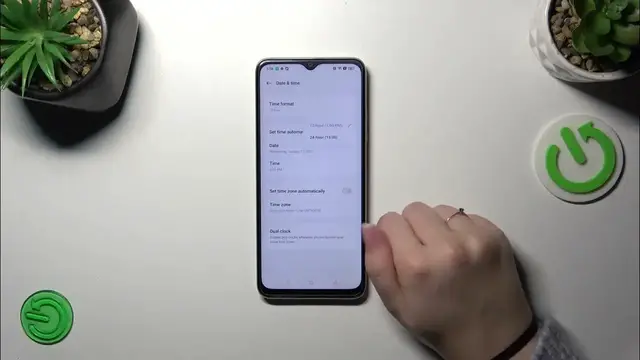
Hi everyone, in front of me I've got OPPO A38 and let me share with you how to change date and time on this device
0:11
So let's start with opening the settings and then scroll down to the very bottom to find additional settings
0:18
Now let's tap on date and time and as you can see here, we've got some options which we cannot customize
0:24
We cannot tap on them, they are simply inactive because we are using the automatic time and the time zone
0:30
So first of all, let's turn off both of those switches and now we can freely tap on date and just by swiping we can change the date
0:38
to the one we want to use. In the same situation with the time, just tap on it and by swiping change it
0:44
And as you can see, it will be immediately applied to the status bar
0:48
We can also change the time zone, just tap on it and right here
0:52
we've been transferred to the list of available ones. So just find yours and tap on it
0:57
Let me pick this one and as you can see, it will be immediately applied
1:01
But of course be aware that after changing the time zone, the time can change according to it, of course
1:07
Here we've got also the time format, so you can use either 12 hour format, which is currently applied or 24 hour one
1:14
It's again up to you and the dual clock. So basically you can decide whether you want to display two different clocks just by tapping on the switcher
1:23
One will display the hours from the place you're currently in and the other one from any other place in the world
1:33
So it's basically up to you. So this is the whole manual customization
1:38
We can always get back to the automatic options just by tapping on those switchers here
1:43
All right, so that'll be all. Thank you so much for watching. I hope that this video was helpful and if it was, please hit the subscribe button and leave the thumbs up