0:00
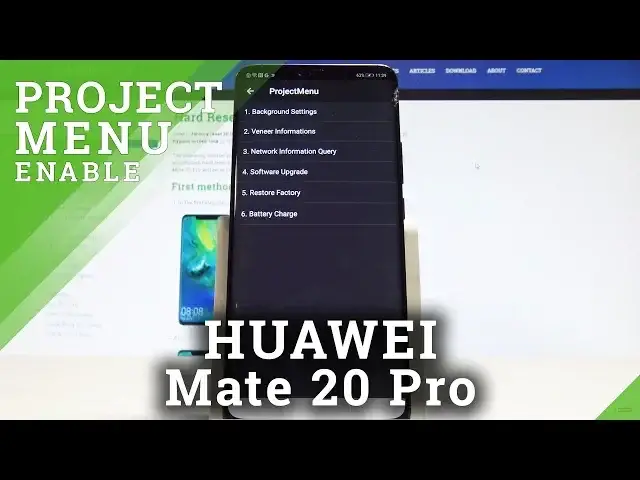
Here I have Huawei Mate 20 Pro and let me show you how to enter the project menu on
0:13
the following device. So at the very beginning let's start by using your phone's dialer and let's use this secret
0:19
code asterisk pound asterisk pound 2846579 pound asterisk pound asterisk
0:30
As you can see project menu just pops up so here you can navigate by tapping appropriate options
0:35
You can choose here background settings. You can for example tap background debug and make it open
0:40
You can change USB port settings and you can switch it into the Google mode for example
0:45
or you can use AP lock settings. Tap close. Let's go back
0:50
You can also choose veneer information and here you can read the version info
0:54
The device is processing data. Here you've got bootloader version, parameter version, other stuff
1:02
You can also see manufacturer info right here or you can see other info
1:08
That's it. Let's go back. You can also check out network information query
1:12
Here you've got two important things for example Simlog info. In my case Simlog is the active and vendor country info
1:21
This is the Europe version. Let's go back. You can also accomplish software upgrade by using your memory card
1:27
You can accomplish the hard reset by using restore factory but let's just be careful
1:32
of that option because you will lose all your data and you can also tap battery charge and
1:38
check battery level and battery temperature. So that's it. Everything went well
1:42
If you would like to go back let's use a back key and now you may use your device in a normal way
1:48
Thank you for watching. Please subscribe our channel and leave thumbs up under the video