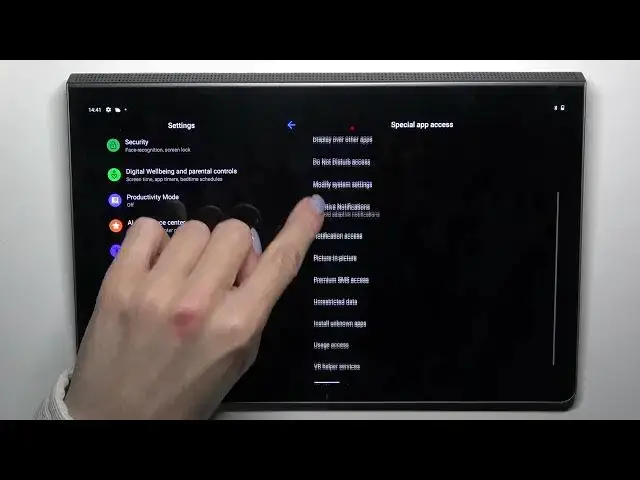

How to Allow Installation of Apps from Unknown Sources on a LENOVO Yoga Tab 11
Mar 20, 2024

Learn more about the LENOVO Yoga Tab 11: https://www.hardreset.info/devices/lenovo/lenovo-yoga-tab-11-lte/tutorials/
By default, your LENOVO Yoga Tab 11 is set to only allow the installation of apps from the Google Play Store. However, there may be times when you need to install apps from unknown sources. In this tutorial, we'll show you how to allow unknown app installation on your LENOVO Yoga Tab 11. We'll take you step-by-step through the process, including navigating to the settings menu, selecting the "Apps & notifications" option, and enabling the "Unknown sources" option from the "Advanced" menu. We'll also discuss the risks involved in installing apps from unknown sources and how to minimize these risks. Whether you're new to the LENOVO Yoga Tab 11 or just need a refresher on how to allow unknown apps installation, this video has got you covered.
How to grant the Install Unknown Apps permission on a LENOVO Yoga Tab 11? How to manage app permissions on a LENOVO Yoga Tab 11? How to install apps from unknown sources on a LENOVO Yoga Tab 11?
#LENOVOYogaTab11 #UnknownSources #LENOVOApps
Follow us on Instagram ► https://www.instagram.com/hardreset.info
Like us on Facebook ►
https://www.facebook.com/hardresetinfo/
Tweet us on Twitter ► https://twitter.com/HardResetI
Support us on TikTok ► https://www.tiktok.com/@hardreset.info
Use Reset Guides for many popular Apps ► https://www.hardreset.info/apps/apps/
Show More Show Less