0:00
Hi everyone, in front of me I've got Elephone Armor X7 Pro and let me show
0:05
with you how to add the fingerprint to this device. So let's start with opening the settings and here we have to scroll down in order
0:15
to find the fingerprint section. Let's tap on it. Before we'll be able to add
0:19
the fingerprint we have to add the regular screen lock if you do not have
0:23
one of course because if you've got one you will be transferred to another step if not you have to do it because if for some reason the fingerprint sensor won't
0:31
work then you will still be able to unlock your device with the pattern pin or password. So let me choose the pattern for example let me draw it tap on next
0:39
redraw it and confirm. Here we've got the notification content which we want to
0:44
show on the lock screen so it's up to you just mark the option and tap on done and here the information about the fingerprint unlock so that you're able to
0:53
authorize the purchases of course unlock your device or sign into apps so just
0:58
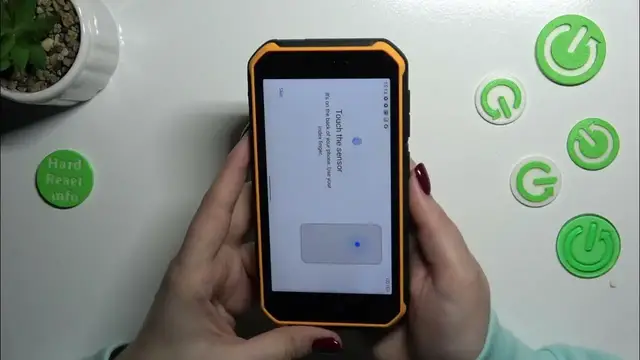
tap on next and now we have to touch the sensor we've got also the instructions
1:01
we have to touch it it is on the back of our device as you can see here under the
1:06
camera lens so so let me put my finger on it and right now we have to do it
1:10
multiple times to add our fingerprint fully so just change the position of
1:15
your finger slightly to catch everything. Okay and as you can see in this device
1:20
it is really fast to add the fingerprint so let's simply tap on done and this is
1:26
the section with our fingerprints that's obviously the fingerprint we just added
1:30
we can remove it just by tapping on the storage bin icon or rename it just tap
1:34
on it and tap on a rename and enter the name you want. Here you can select also
1:40
the fingerprint function so only for unlock or unlock and open the app
1:44
directly it's up to you whether you want to use it or not and you can add another
1:48
fingerprint so I believe you can add up to five different fingerprints. Alright
1:53
so let me look at the device and let's check if it is actually working so let
1:57
me put my finger on the sensor and as you can see the device is unblocked
2:02
which means that we just successfully added the fingerprint to it. Alright so
2:06
that would be all thank you so much for watching I hope that this video was helpful and if it was please hit the subscribe button and leave the thumbs up