0:00
Hi everyone, in front of me I've got an Oppo F19 and let me share with you how to add the fingerprint to this device
0:10
So let's start with opening the settings and here we have to scroll in order to find the password and security. Let's tap on it
0:19
Then let's tap on the fingerprint here and of course confirm everything with your current screen lock
0:24
If you do not have your screen lock currently set you will have to do it right now. Your device will not allow you to add the fingerprint without it
0:32
So just choose the pattern pin or password and then add it. Alright, so let me enter the pattern and as you can see here we've got the information what we have to do
0:41
So we have to put our finger on the sensor which is located on the right side of our device
0:46
So let me put my finger on it and right now we have to do it multiple times in order to add our fingerprint fully
0:55
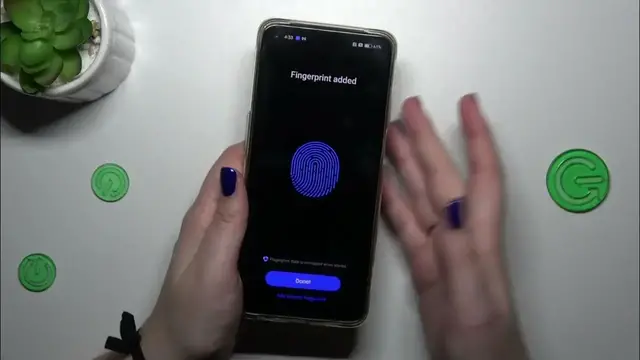
So try to catch every corner of course for better recognition. Okay, we just successfully added the fingerprint so let's tap on done
1:09
And here we've got the fingerprint settings. So this is the fingerprint we just added. We can rename it or remove it. It's up to you
1:17
We can add another fingerprint. I believe we can use up to five different fingerprints
1:22
Here we've got the screen unlock. So basically here we can decide for what we want to use the fingerprint for
1:28
So the screen lock, up lock and the private safe. We can enter decide whether we want to enter home screen after unlocking
1:35
And the way of unlocking. So the light touch and firm touch
1:41
Light touch is whenever you're putting the finger on the sensor and the firm touch is you have to put it and press it
1:48
So it's up to you which option you prefer. I believe that the first one is more comfortable to use
1:54
Alright, enough of talking. Let's lock the device and let's check if it is working. So let me put my finger on the sensor and unfortunately I added my thumb instead of the pointer for example
2:04
Alright, so let me put my finger on the sensor. Alright, and as you can see the device is unblocked which simply means that we just successfully added the fingerprint to it
2:15
Alright, so that would be all. Thank you so much for watching. I hope that this video was helpful
2:21
And if it was, please hit the subscribe button and leave the thumbs up. Thank you