0:00
Welcome, I'm Filomena from Xiaomi Mi 10 and today I will show you how to set up the personal hotspot
0:14
So to get started let's go down to the panel, next page and you'll have the hotspot right here
0:21
Tap on it and right here it's right now enabled and you also want to hold it and it will take
0:27
you to the settings where you can change the password for it
0:32
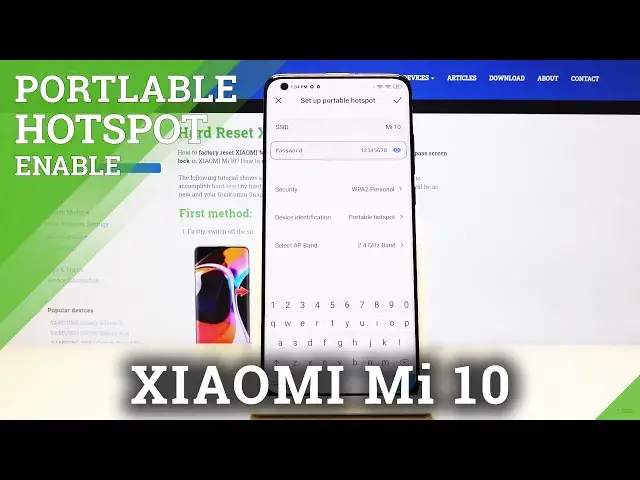
So set up personal hotspot, right here you can either tap on the password that exists
0:37
and just, I don't know, try to remember that or the thing that I advise more is just remove
0:42
this one and put a new one that you might remember actually
0:48
And all you need to do is just set a password with at least 8 characters, so 1 through 8
0:53
works just fine enough. And then you also have a couple of other ones on the bottom right here, so you have the
0:57
security, I would rather keep it as it is right now. Then device, let's just keep it as it is too
1:07
Then you have the AP band, now here is a choice that depending on devices that will be connecting
1:15
you can switch that around. So 2.4 GHz band will be basically supported by almost every smartphone, while 5 GHz will
1:25
be supported by the newer devices. So any device from like 5 years ago might not support it, somewhere along those range
1:37
So if you set to 5 GHz and you try to connect your phone to the network by the name of at
1:44
the moment Mi 10 and you don't see the network at all in your list, that means that you just
1:49
need to drop that to 2.4 and your device at the moment isn't necessarily compatible with
1:55
the 5 GHz one. The benefit of 5 GHz is just the fact that it's faster and just a little bit better than
2:01
the 2.4, but like I said, older devices don't really support it
2:08
So choose whichever one you need, you can always change that on the way if for instance
2:13
your device doesn't support it, you can go back in here and change it
2:17
So let's just tap on the checkmark, the password is changed and everything is now set
2:22
And once you have chosen the passwords and all that stuff, you can then simply not bother
2:27
anymore with going into the settings, just tap on it, tap on, off and it will work normally
2:33
with the password that we have chosen and the name of the network
2:37
So that is how you would set up the personal hotspot. If you found this video helpful, don't forget to hit like, subscribe and thanks for watching