0:00
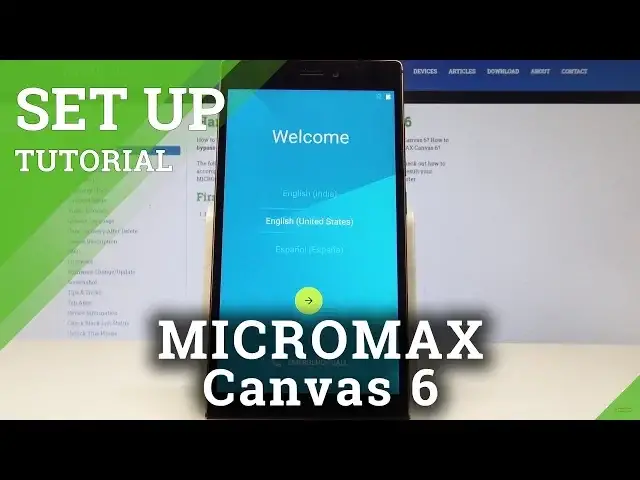
I have Micromax Canvas 6 and let me show you how to setup this device
0:12
So at the very beginning let's start by using your welcome panel. Here you should find your desired language
0:17
In my case let me use English from United States for example. You can also here choose emergency to make some emergency calls
0:25
If you are ready let's go back and now let's use this next key
0:29
You can also insert sim card but you can also activate your device without the sim card
0:33
so let me do it that way. Let's tap skip for now. Here you can also select Wi-Fi network
0:39
It's not necessary, you can skip this point but the Wi-Fi network enabled a few interesting
0:44
things so let me enable the Wi-Fi network. Let's tap done. The phone is obtaining IP address
0:52
So now this can take up to 2 minutes. The phone is checking connections
1:02
Alright so here you can sign in into the Google account. It's not necessary but the Google account enables a few interesting things so let me
1:11
do it. I will connect my device with the Google account
1:26
Alright let's tap next. Now it's time to enter the password. Alright so if you are ready let's tap next
1:40
The tab agree to terms of service and privacy policy. The phone is checking info, let's wait a few seconds
1:51
Here you can set up payment information but you can also choose no thanks. Let me tap no thanks, tap continue
2:00
So here you can protect your phone by using some kind of screen lock but you can also
2:03
tap skip and do it later in settings. Tap skip anyway. Here you've got some Google services that you can enable or disable
2:10
For example backup to Google Drive, you can use Google's location service, you may help
2:16
improve location services and help improve your Android experience. Let me leave all of them enabled, tap next
2:25
And that's it. The welcome panel pops up. Tap got it. So everything went well
2:29
Thank you for watching. Please subscribe our channel, leave thumbs up under the video. And I'll see you in the next video