0:00
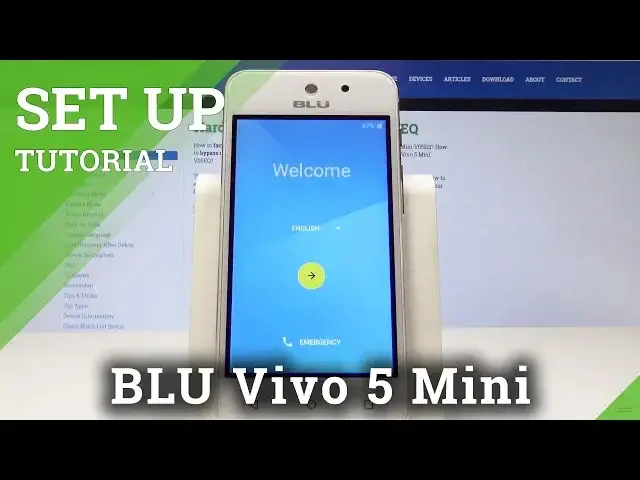
I have Blue Vivo 5Million, let me show you how to set up this device
0:12
So at the very beginning let's start by using your welcome panel. Here you can choose your desired language, you can open the list of all languages and you
0:20
can choose one of the following one. In my case, let me choose for example English
0:26
You can also choose emergency and make some emergency calls or if you can also choose emergency calls or if you would like to go next let's use this button right here so you can also insert
0:34
SIM card but you may activate your device without the SIM card so let me do it
0:38
that way for now let me just choose skip here you can connect your device to a
0:44
Wi-Fi network it's not necessary but I usually recommend this step having the
0:48
internet access enables a few interesting things so let me do it let me connect my
0:53
device to a Wi-Fi the phone is checking connections Alright here we have some privacy information
1:29
Let me accept them and tap continue. The phone is looking for available software update so let's wait a few seconds
1:38
Now the phone is checking info. Here you can sign in into the Google account
1:59
It's not necessary but Google account enables a few interesting stuff. So let me do it
2:04
Let's connect the Google account. the keyboard
2:15
Alright, let's enter the email
2:42
It's time to enter the password so let we do it. Alright, if you are ready, let's choose next, right here
2:57
Let's accept terms of service and Google privacy policy in tab, I agree
3:01
The phone is checking the info. Let's wait a couple of seconds
3:08
So here you've got some Google services. You can enable backup to Google Drive, help apps find your location, improve location accuracy
3:21
and send system data. In my case, I'm only one of them enabled
3:25
Tap next. It's asking you to set up payment info but you don't have to do this
3:34
You can choose No thanks and choose Continue
3:47
So this is your email. So let just leave it in my case You can also add some other email but you can also choose note now and just use the email that you put with your Google account you can
4:01
protect your device by using pin pattern or password to unlock phone or you can do
4:05
it later in setting for now let me tap skip skip anyway so here you can get blue
4:13
news and the latest updates on products so in my case let me just sign me up
4:19
You can also unclick it if you would like to, but you may also leave it
4:26
Here you can review some additional apps. You can download the following apps over the Wi-Fi
4:33
Let's just wait for the list. You can wait for the following app or you can tap okay if you would like to start using your device
4:56
tap go to the welcome information and that's it everything went well thank you for watching
5:00
please subscribe our channel if thumbs up under the video