0:00
Welcome. Efronomy is a Google Pixel 8 Pro
0:03
and today I will show you how you can go through the setup process of this device
0:11
So, when you boot it up for the very first time, you should be presented with the screen as same one as I can see right now. And all you need to do here is select your desired language
0:21
right over here on the very top, or not really at the very top, but basically the first out of
0:27
the two options that we have right here. And just simply find your language. Now for me
0:32
it already has a language that I want to use selected, so I'm gonna just select Cancel
0:37
and then I'm gonna choose Get Started. Start up using another device. So this would just allow
0:43
you to quickly set up your device by, for instance, pairing up with the older device
0:48
and at that point it's just gonna transfer everything over pretty quick and painless
0:53
A very nice thing to utilize if, for instance, you have a bunch of data that you want to move over
0:58
and add all your Google accounts and all that stuff, so it does that all for you
1:04
So you can utilize it. Now I'm gonna be setting it up as new, so I'm gonna select
1:08
Skip right here, and this will then prompt me to sign into a Google account, or not a Google account
1:14
a Wi-Fi, which I can skip, as you can see right here. So that's what I'm gonna do. Now by skipping
1:22
it, I will also lose the option to log into a Google account throughout the setup process, and
1:28
date and time won't be set automatically. And there is one more, which I think, oh, never mind
1:35
it won't let me know, but I think it was one of something along the lines of updates. Automatic
1:40
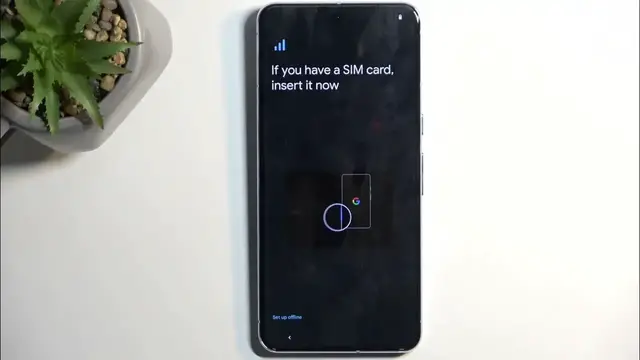
update won't happen. Anyway, next page we have Set Up Your SIM Card. So we can do so by either
1:48
inserting a physical SIM card. We should also have the option to use an eSIM, though it's not
1:53
visible right here, so I presume we are able to add it through the settings only. Now it tells
2:01
me, actually, gives me the message that I was hoping for before, so Set Up Offline, and I lose
2:07
the option to log into Google accounts, restore absent data, get software updates, and automatically
2:12
set up a date and time. So I'm going to continue anyway, and here's the date and time that isn't
2:17
set automatically. I can fix it up if it's incorrect, but that being said, it is actually
2:21
set up correctly. Then we have Google services like location scanning and sending user and
2:27
diagnostic data. If you don't want them, you can completely turn them off. Limited warranty
2:35
so we have a bunch of different regions for it. You can read exactly what it says about your
2:40
warranty, whatever you are based on right now. Next page, it allows us to select a PIN. Now by
2:49
default it opts into a PIN, but we also have the option to select pattern or password
2:55
and additionally, once you select one of those, you can also actually
3:03
just set it up. There we go. You can also add a fingerprint if you want to. I don't, so I'm
3:08
going to select skip or no thanks, and we can also add face unlock. Again, if you want to, you can add
3:15
that in. I'm again going to select no thanks. Now one thing to keep in mind, you will not be able to
3:21
have either face unlock or fingerprint without the physical unlocking like PIN, pattern, or password
3:29
and the reason for that is if something would happen to your face, your finger, or the sensors
3:34
on the device that read those, you'd lose access to your device and all your data
3:43
Getting your phone ready, so let's give it a second, and apparently that was literally a second
3:48
Swipe to navigate, we have two options. We have either gesture navigation or physical buttons. By
3:53
default it's using the buttons, but I do want to use the gestures. I guess I have to learn it to
4:01
to actually enable it for some odd reason. Cool. Gesture navigations have been long enough to
4:09
to not require tutorials. There we go, and we can swipe up, and there's our home screen
4:16
So if you found this video helpful, don't forget to hit like, subscribe, and thanks for watching