0:00
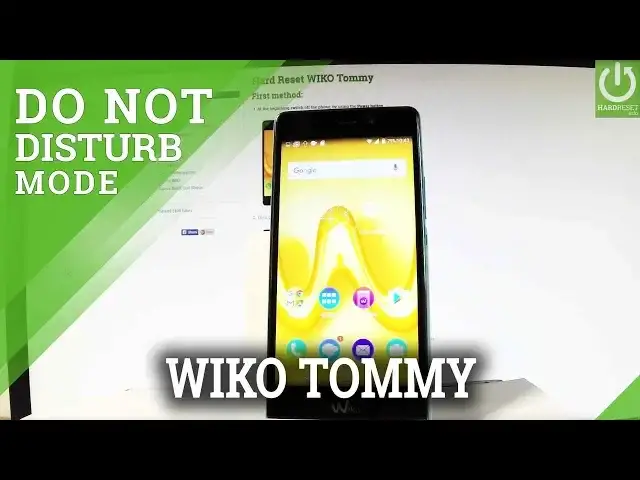
Here I have Waiko Tomy and let me show you how to use and how to enable Do Not Disturb
0:10
mode on the following device. If you would like to use Do Not Disturb mode very quickly let's use an upper bar twice
0:18
and here you should find Do Not Disturb, let's tap it. And you can choose the mode of Do Not Disturb, you can choose Total Silence, so this block
0:29
all sounds and vibrations including alarms, music, videos and games but you will still
0:34
be able to make phone calls. You can also choose alarms only or priority only
0:42
Let me choose alarms only in my case and as you can see you can use this mode for example
0:48
for a period of time, for an hour for example. You can also choose until you turn it off, so let me choose until you turn it off
0:58
As you can see right now the Do Not Disturb mode turns into alarms only right here and
1:06
the icon of this mode is also right here. If you would like to change some settings about Do Not Disturb mode let's find and select
1:14
the settings. Under device let's choose sound and notification. Here you have to choose Do Not Disturb and you can choose priority only allows and here
1:27
you can change some exceptions for example the reminders, events, the messages, calls
1:33
for example you can just use calls from contacts only. You may also handle with repeat callers
1:40
Let's go back. You may also change some automatic rules so you can turn on the Do Not Disturb mode automatically
1:48
for example every weeknight, every weekend and some other customized rule. Let's go back and if you would like to quit Do Not Disturb mode let's use an upper bar
1:58
twice, choose alarms only and that's it. You just disabled Do Not Disturb mode
2:04
So thank you for watching. Please subscribe our channel and leave thumbs up under the video