0:00
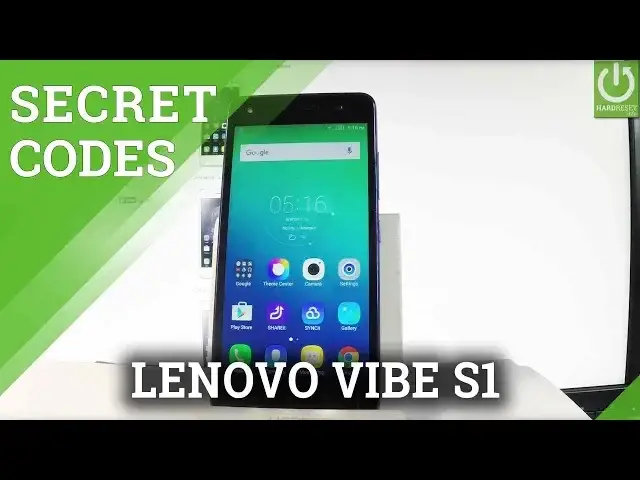
Here I have Lenovo VIBE S1 and let me show you how to use secret codes on the following device
0:10
At first, let me open the phone's dialer, so let's use the phone icon in that corner
0:15
and now you are ready to use our secret codes. So let's use at first the code that allows you checking the version of the device
0:24
Let's type in hush hush, hush hush, 0000 hush. As you can see the version of the Lenovo just pops up
0:33
In order to close this window simply tap OK. Let's use the second secret code which is the factory kit test
0:40
Let's use hush hush, hush hush, 1111 and the hush. As you can see factory kit just pops up
0:51
Here you can choose full test to test all the features and hardware from your device
0:56
PCB test, item test and key B test. Let me choose item test for example and here you can test only the things that you need
1:04
For example the receiver, you've got the male voice, female voice, you have to choose pass
1:13
or fail and here you've got the result of this test. If you would like to quit the test menu let's use a back arrow a couple of times and now
1:22
you may use the phone's dialer again. Then let me show you how to check the internal version of the device
1:31
So let's use the hush hush, hush hush, 5993 hush hush. Let me do it again, hush hush, hush hush, 5993 hush
1:47
As you can see the internal version of the phone just pops up
1:51
In order to close this simply tap cancel. Now let me show you how to check the serial number of the phone
1:58
Let's use hush hush, hush hush, 2222 hush and the serial number just pops up
2:05
To close this window simply tap OK. Now it's time to check the other info
2:10
Let's use the hush hush, hush hush, 8375 hush and the version info and other important stuff
2:20
just pops up. For example you can check here the Android version, the external version, kernel version
2:27
model number and other stuff. Tap cancel. Now let me show you how to open the testing menu
2:33
To open the testing menu you have to use star hush, star hush, 4636 hush star, hush
2:39
star and the testing menu just pops up. Here you can check the phone information, when you've got all specifications about your
2:47
device you can read such things as cell info, roaming, network type, cell status, GSM information
2:55
and other stuff. You can also run a ping test and choose more key, for example to view SIM address book
3:03
or for example to view fixed dialing numbers. Let's go back. Let's choose battery information
3:10
Here you've got all information about your battery such as battery status, battery scale
3:14
battery health, battery temperature and battery technology. Let me go back. You may also choose user statistics
3:21
Here is the list of applications for your device and you can read such things as last
3:26
time used or usage time. Let me go back and this time let's choose VLAN information
3:31
Here you can select VLAN API, when you can disable network, disconnect network, enable
3:36
network, get configured networks or get connection info. Let's go back and choose VLANs config
3:42
If you have configured networks here you have the full specification of them
3:46
Let's go back again and choose VLAN status. Here you've got status about your WiFi, you can read statistics about your WiFi, you can
3:54
refresh them or run a ping test. Let's go back a couple of times and at the end let me show you how to check the email
4:02
number of the following device. Let's use star hash, 06 hash and as you can see the email number just pops up
4:11
In order to close this window simply tap OK. Excellent. Everything went well
4:15
Thank you for watching. Please subscribe our channel and leave thumbs up under the video