0:00
Hello in this video I am with the POCO Anime Pro and I'm going to show you the best camera tips and tricks for this device
0:11
So first of all we are going to start from the brightness level
0:15
You can adjust the brightness level manually on every mode and you can do this by tapping on the screen and then moving the sun icon up and down
0:27
You can also do this automatically by tapping on on the screen once. Another option will be about the zoom feature, so as you know, we can zoom in
0:37
by using these presets, but when you click and hold one of it, you will unlock this slider
0:42
and you can do this very smooth. That's by the way the maximum zoom on this phone, that's the 10x
0:53
Take a look how great it works. We can also use the volume buttons. They are
1:00
located on the right side, just take a look. When you click volume up, we are going to take
1:05
photo with the two seconds delay. When we click volume down, that's also two seconds delay. You
1:12
can manage function of these buttons by going to the settings, so we have to click on
1:16
this three lines in the right upper corner, then go to the settings and then simply scroll
1:21
down and find this adjustment. So you are also able to use the volume buttons as a normal
1:27
shutter without this delay, or for example, as a zoomer. So take look how it works right now
1:32
When you click volume up, you are going to zoom in and volume down to zoom out
1:44
Next, we can also tap right here by using the default filters
1:50
As you can see, they will change color and the temperature, and that's actually a lot of different filters
1:56
When you click on these three lines, we are also able to add manual delay to our shutter between three, five or ten seconds
2:08
We are also able to enable the grid lines. As you can see right now they appears on the screen and they help us to take better composition on our photos We can also use the voice shutter So right now we turn it on And as you can see we have to say this keyword so it cheese
2:27
And we can take photos by using the voice shutter. You can also use the timed burst
2:36
So right now we can pick number of the photos. For example, let's take 10 photos
2:42
and we can take photos. each second. So right now when you turn it on and click on the shutter
2:49
your phone is going to take 10 photos for each second. So this will be, for example, useful
2:58
when you put your phone on the stand and you don't have to press on the shutter
3:07
Your phone will automatically take photos. Let's turn it off right now
3:11
and let's go to the settings where we can find other useful options
3:16
So when you open right here in the settings, we can also find tab to take photo
3:21
Let me show you how it works. Right now we don't have to use this shutter anymore
3:25
You can just click on the screen and your phone will automatically catch focus and also take
3:29
the photo after catching the focus. Next we are also able to scroll down a little bit and go for the customize options where we
3:38
can for example switch this shutter sound or change. change colors of activate modes and features
3:48
And also we are able to adjust our camera modes so we can get this swipe option like for the more tabs
3:57
but also you can do this like that. Let me show you. You can open them by swiping
4:06
Next, I will recommend you to open these more modes. And with the more modes
4:12
we can find other very useful options and I want to show you for example this clone mode
4:17
so we have to be connected to the Wi-Fi or mobile data to download this mode and that's
4:24
also the vlog mode and dual video mode so in the dual video mode we are able to take videos from the selfie and the rear camera at the same time Just take a look We are also able to adjust theme
4:45
So basically switch cameras or get it picture into picture
4:54
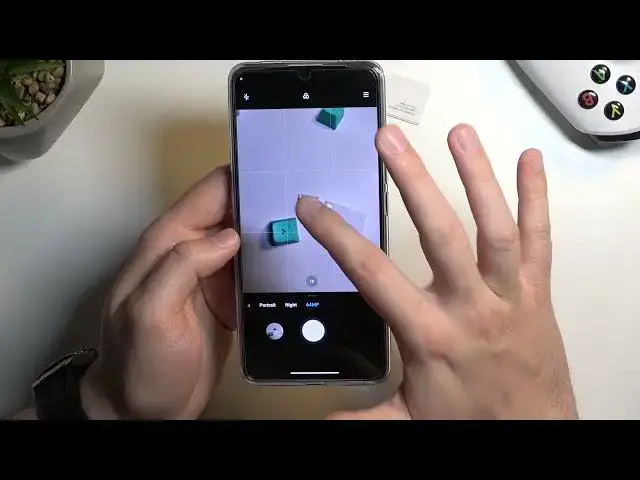
When you want to get more details on the photos, I will recommend you to use the 64 megapixel
4:58
mode and let me show you how it works. Turn it on, catch focus and then take photo
5:06
Thanks to this mode, we'll get definitely more details on our photos
5:10
Take look how many details we can find, for example, on this SD card
5:18
Next, let's move to this additional modes that we download. For example, we can start from the vlog mode
5:25
And here we can find automatic transitions, musing and other effects. basically you just have to hold your phone
5:33
catch some short videos and then your phone will automatically make the full video from this
5:41
few moments that you catch let me show you how it works
5:46
for example we can get this one with the six segments so click on this arrow
5:53
that's by the way the song I'm going to mute it and let's start
6:00
recording it will definitely look better when you are outside and you have
6:18
something interesting to record but all I'm going to show you the quick
6:25
preview how it looks in my office so as you can say it's finished
6:31
and at the end you have to just click right here, let me just volume up
6:35
click here to confirm and right now we are going to watch the full video
6:43
so go to the gallery and just take a look how great it looks
6:51
And I can definitely recommend you to test all of these presets
7:12
As you can see we can find one, two, three, four, five, six different presets
7:21
and it looks very very similar to the movie effects mode so i can also recommend you to
7:30
download this one and just simply test all of these presets next we can use the clone video
7:37
or the clone photo so let me show how it works you have to grab your phone and the landscape mode
7:44
and here you can also find basically the description of this parameter i mean of this mode
7:51
I will try to clone my hand. It's not always working but let's try
7:59
We have to catch the subject, click on the shutter, hold your phone steady
8:11
It's not designed to catch the part of the human body, basically it's designed to catch the part
8:17
of the human body. designed to catch the whole person but I'll try to show you
8:26
Okay, let's click right here and as you can see I just clone my hand
8:46
It's definitely easier when you have someone in front of you. So basically the cloning person is definitely easier than the part of your body
8:54
And yeah, I guess that's all for the tips and tricks on the Poco F5 Pro
9:00
For the camera. So thank you for watching. Hope you like it