Up next in 10

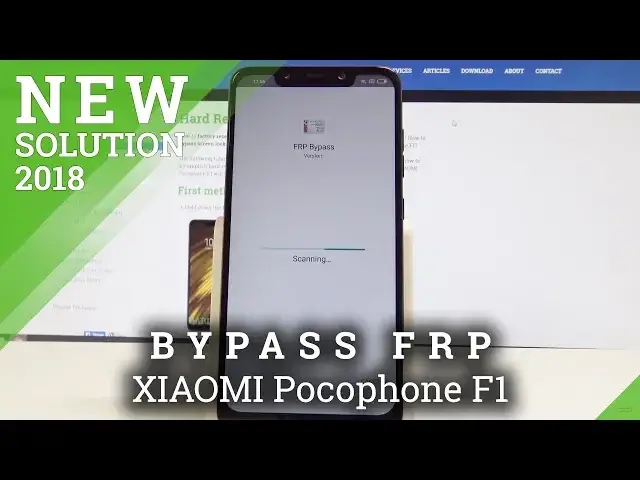
Bypass Google Verification XIAOMI Pocophone F1 - How to Unlock FRP / Skip Google Account
May 24, 2024

The bypass Google verification is the best solution for forgotten Google Account password. Let's unlock Factory Reset Protection in XIAOMI Pocophone F1. Here you can check out the tricks for remove factory reset protection and skip Google Account verification. Let's activate XIAOMI Pocophone F1 without Google account.
How to unlock FRP in XIAOMI Pocophone F1? How to unlock Factory Reset Protection in XIAOMI Pocophone F1? How to skip factory Reset Protection? How to bypass Google verification in XIAOMI Pocophone F1? How to bypass Google Account in XIAOMI Pocophone F1? How to activate XIAOMI Pocophone F1 without Google account?
More Info:
https://www.hardreset.info/devices/xiaomi/xiaomi-pocophone-f1/hardreset/first-method/
Show More Show Less View Video Transcript
0:00
Here I have Shia, I'm Epipocon F1 and let me show you how to bypass Google verification on the following device
0:15
So let me show you how to un-mug-fRP, how to remove the factory reset protection
0:19
So at the very beginning, let's use the following screen, verify your account
0:24
As you can see, you can't bypass this step so easily, so let me show you how to do it
0:28
Let's go back to the first. back to the first screen of course you need to have the internet access I've got
0:33
my internet and let's go right here then let's hold two fingers on your screen
0:39
until you see the talk bug menu so let me do it let's hold down two fingers
0:42
keep holding those two fingers alright talkback is enabled now let's write the big letter on the screen
0:58
Let me show you. Choose here Talkback Settings. Let's tap once on TalkBack Settings and then double it up to confirm it
1:09
Now let's use together volume up and volume down. So let's hold down together those two keys
1:19
Choose use Shortcut, double it up to confirm it. Let's use volume down and volume up together one more time
1:26
Excellent. Now you can scroll down here and let's select Hullbone feedback
1:36
Choose get started with voice access, play this video. Let's use this clock right here and here from the following options. options
1:51
You need to select the browser, web browser, so let me do it
1:58
Tap allow, agree and continue. Now you can use the web browser, so let's enter the following website, Hardreset. info
2:09
all right let's go next
2:20
here let's use this menu find and select download let here use the following phrase Android 8 let me tap search here I have the Google
2:40
Account Protection file so let me tap download scroll down let's choose
2:47
download again tap okay the device is starting download Alright, now let's choose settings
3:01
Let's allow from the source. Let's go back, tap install. Excellent
3:15
Now choose more apps. Here you need to enter the following phrase, ES, file
3:53
Tap open
4:06
Tap agree and continue choose start now and here you can tap up
4:14
and select here the FRP bypass so this is the app that we previously installed
4:20
from the following options options you need to find and select the open option so let me do it let's tap open
4:33
now you can use this app let's choose google account manager choose for version 6.0 tab settings
4:40
let's allow from this source now let's go back tap install device scanning so that what we need from the following options you need to tap done select bypass frp choose browser sign in use this more key select browser sign in again tab okay
5:07
And at this point you need to connect, you need to sign in into some Google account
5:12
It could be any Google account, even the new one, just the Google account that you know the password and the email
5:18
So let me do it, let me enter my Google account. It could be even the new one that you just create
5:26
you just create tab next now let me enter the password all right here you need to choose sign in
5:52
all right now the frp bypass pops up let's use power key choose here reboot and tab reboot one more time all right let's go next let me quickly
6:11
activate my device let me choose my region let's choose also your region let's go next let's go next
6:24
Next right here, just let me skip the step with the checking SIM card
6:31
Go next, the phone is looking for updates. Let me set up my device as a new
6:38
As you can see, account added. So the account that you just sign in is added to your device, that's what we need
6:45
Now let's tap next. Let me tap more, more, and no thanks to the following information
6:53
choose more and accept let me just activate really quickly my device
6:57
tab got it let me allow a me cloud let's go next let me skip the me account
7:05
signing in skip all right setup complete you're ready to rock and now you can use
7:19
your device but to be just sure that you do delete the FOP protection completely it a good idea to perform the hard reset by using the settings So that what I going to do let just wait for the apps let me allow the
7:38
permission Poco launcher all right now let's choose settings scroll down from the settings
7:45
choose additional settings scroll down again choose backup and reset select factory data reset choose
7:51
reset phone let's wait 10 second the factory data reset erase all data on your device that
7:58
we need we would like to erase all account information tap next now to begin the operation
8:05
you have to wait also 10 seconds and tab okay so let me wait and now i can tap okay so let me do it
8:13
and the device is performing a hard reset so let's wait until the operation will be completed
8:28
All right, the new UI welcome panel pops up, so let's just quickly activate the device
8:48
So let's just go with the default settings, default configuration. So just make sure that I can activate my device without the Google
8:58
account let me even skip connecting to a network let me also skip inserting SIM card
9:04
tap more and accept let's go next right here a couple of times and
9:20
and let's activate the device tab below let me allow a little
9:35
let me allow a launcher to access a couple of stuff let me tap deny right now and
9:40
that's it right now you can use your device so just activate your device without
9:45
any Google account so everything went well thank you for watching please
9:49
subscribe our channel if thumbs up under the video