0:00
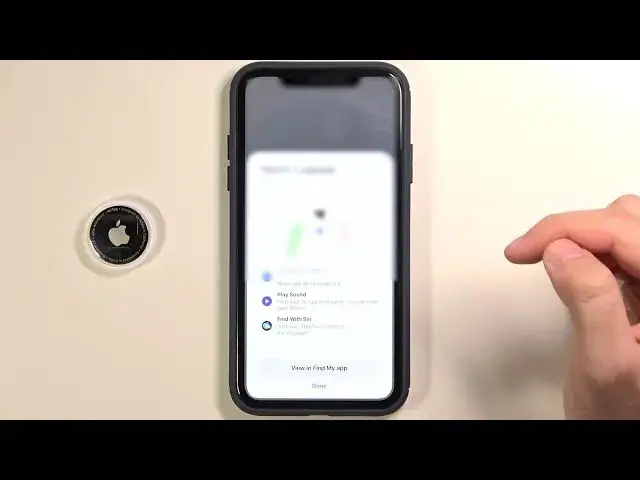
Welcome, today I am with Apple AirTag and iPhone and I'm going to show you how you can
0:12
make the setup of this device. So you have to remember about a few things
0:16
You have to be connected to the Wi-Fi or use the mobile data. You have to enable Bluetooth and also you have to enable location services on your iPhone
0:26
So let's simply move for the settings and location you can find on the privacy and there
0:31
we got the location services so we have to simply tap on the switcher to enable this feature
0:35
Next, you have to get the latest version of the Find My application
0:39
You can make it by get update on the App Store. When you make it, just simply open it and in most cases you will be open on the people
0:47
or devices but you have to go for the items and then tap to add item, click to add AirTag
0:54
You have to keep your AirTag close to the iPhone. Next you have to click to connect
0:59
Here we can name our AirTag, for example, you can go for luggage
1:03
So click here, there we got our data, so email and phone number, click to continue
1:10
Right now, there we go for the first setup so we have to wait
1:20
Right now, there we got few base information, let's click done and if you want to set up
1:27
few things, for example, you want to adjust notifications so when you enable the lost
1:36
mode like that, we can activate the notification that someone found it
1:43
We can also rename this item so here we can change the normal name like the default names
1:49
like camera, handbag, bike or backpack but we can also make the custom name
1:54
So for example, let's type here, hard reset tag and we can add emoji here
2:06
This one, click down on the right up corner and finish and right now when you go back
2:11
as you can see our AirTag change the name and also change the icon on the map
2:19
So, if you find this video helpful, remember to leave a like, comment and of course, subscribe to our channel